Developing Inside Docker with VS Code Remote - Containers: A Practical Walkthrough
Learn how to use VS Code Remote - Containers to develop inside a Docker container, with a step‑by‑step Python example, performance tips, and limitations.
09 Sept 2025, 05:30 UTC
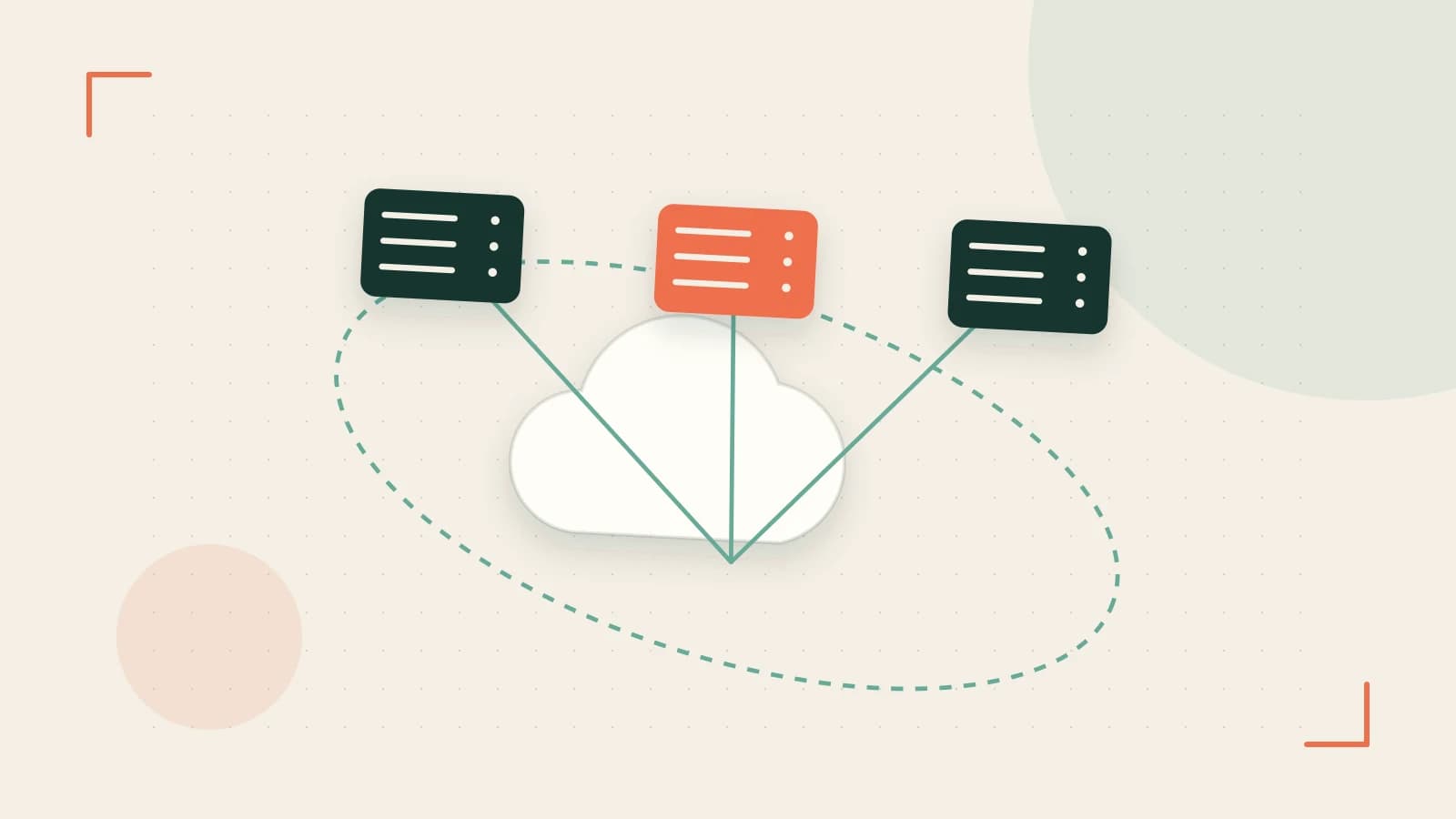
The problem: inconsistent environments
When a team shares a codebase, differences in operating systems, installed runtimes, or extension versions can cause "works on my machine" bugs. Setting up identical local environments manually is time‑consuming and error‑prone, especially for projects that rely on specific database versions, native build tools, or isolated dependencies.
Solution overview: Remote - Containers
The VS Code Remote - Containers extension lets you open a folder inside a Docker container and use the full editor feature set—IntelliSense, debugging, extensions—as if you were working locally. VS Code builds the container from a devcontainer.json file, forwards ports, and mounts the workspace so file edits persist outside the container.
Setting up a devcontainer
- Prerequisites: Install VS Code, the Remote - Containers extension, and Docker Desktop (or Docker Engine). Your user must be able to talk to the Docker daemon (e.g., member of the
dockergroup on Linux or have Docker Desktop running). - Create the configuration: In the root of your project, add a folder named
.devcontainerand place adevcontainer.jsonfile inside it. A minimal example for a Python project looks like this:
{
  "name": "Python Dev Container",
  "image": "mcr.microsoft.com/vscode/devcontainers/python:3.11",
  "forwardPorts": [3000],
  "postCreateCommand": "pip install -r requirements.txt",
  "mounts": ["source=${localWorkspaceFolder},target=/workspace,type=bind,consistency=cached"]
}
Where to run: After saving the file, open the folder in VS Code. A notification will appear asking to "Reopen in Container". Click it; VS Code will build the image (if not cached), start the container, and attach the UI.
Worked example: Python project with port forwarding
Assume you have a simple Flask app in app.py that listens on port 3000 and a requirements.txt listing Flask.
- Open the integrated terminal (
View → Terminal) inside VS Code. You are now inside the container. - Verify the environment:
$ uname -a
Linux vscode-devcontainer 5.15.0-105-generic #115-Ubuntu SMP ... x86_64 GNU/Linux
- Start the Flask app:
$ python app.py
 * Running on http://0.0.0.0:3000/ (Press CTRL+C to quit)
Because forwardPorts includes 3000, VS Code automatically maps the container’s port to localhost:3000 on the host. Open a browser on your host and navigate to http://localhost:3000; you should see the Flask response.
IntelliSense works as usual: hover over Flask in app.py to see documentation, and you can set breakpoints directly in the editor.
Trade‑offs and limitations
- File‑system performance: On macOS and Windows, the default bind‑mount consistency can be slow for large projects. Adding
:cachedor:delegatedto theconsistencyoption (as shown in themountsfield) improves speed, but may delay visibility of changes made inside the container to the host. - Extension compatibility: Extensions that ship native binaries must match the container’s architecture (usually Linux/amd64). If an extension fails, you may need to install a compatible version inside the container or use the
extensionsproperty indevcontainer.jsonto list required extensions. - Resource usage: Each container consumes CPU, memory, and disk space. Periodically prune unused images (
docker system prune) to reclaim space.
Next steps and cleanup
When you are done working, close the VS Code window or run Remote‑Containers: Close Remote Connection from the Command Palette. The container stops but remains on your system; you can restart it later by reopening the folder. To remove it entirely, run:
$ docker container rm -f vscode-devcontainer-
$ docker image rm mcr.microsoft.com/vscode/devcontainers/python:3.11
Verify that no stray containers remain with docker ps -a. This workflow gives you a reproducible, isolated development environment while retaining the convenience of VS Code’s full feature set.
 docker
 vscode
0 replies
A thoughtful contribution can make all the difference. Be the first to share one.