Guide
Configuring Persistent Messaging with Waku Store in Go
Learn how to enable Waku Store for persistent messaging, configure a Go node with BadgerDB, publish and query messages, and understand storage limits and common pitfalls.
Published by Tasadduq Burney
23 Mar 2026, 01:08 UTC
2 min57.7K views0
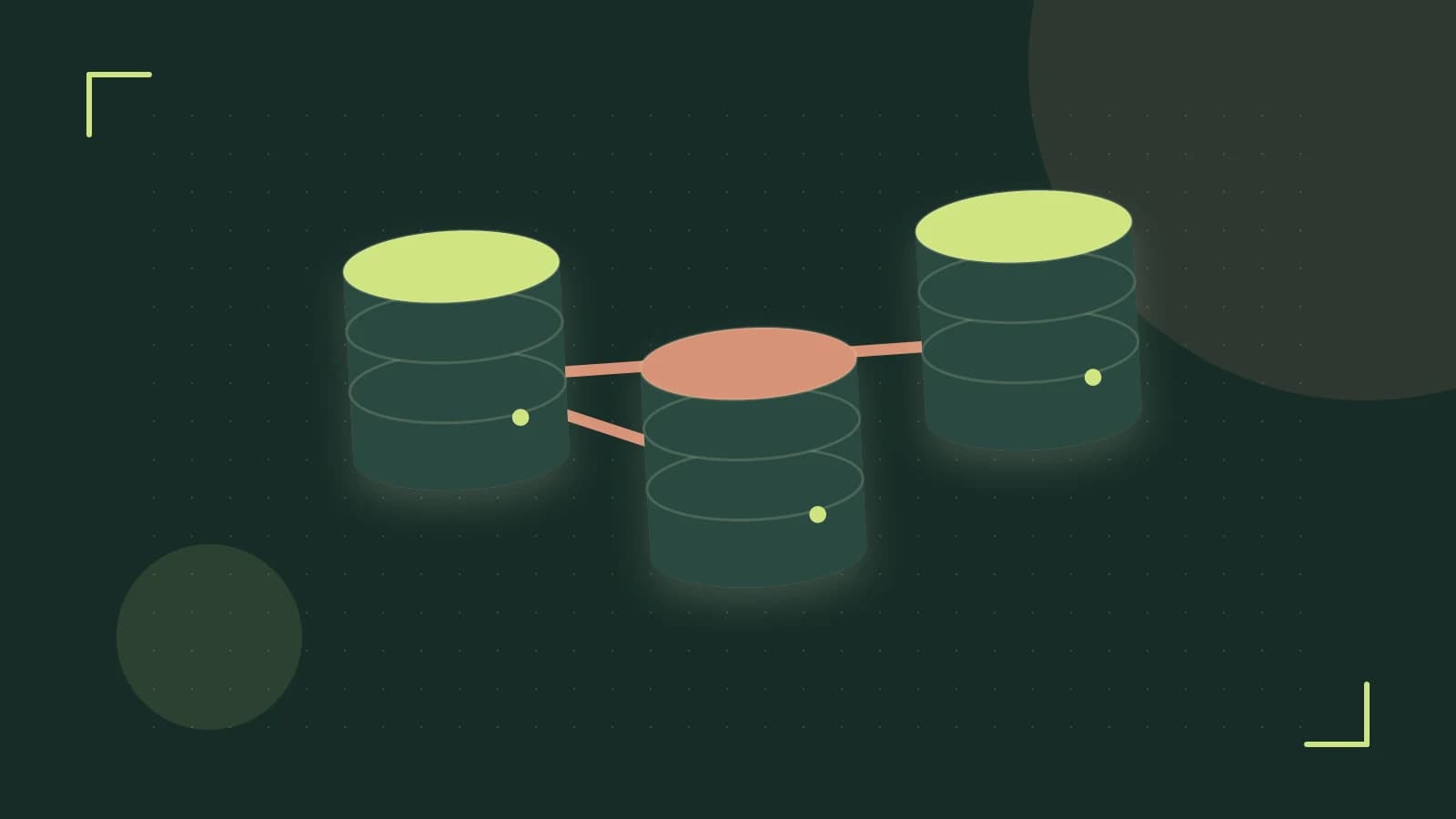
Enable persistent storage with Waku Store
Waku Store adds a durable log that indexes messages by content topic and arrival time. Once enabled, any peer that comes online later can query the log for messages that were published while it was offline.
Minimal node configuration
opts := &node.WakuNodeOptions{
    EnableStore: true,
    Store: &store.Options{Path: "./waku_store"},
}
Publishing and querying
// Publish
wakuNode.Publish(context.Background(), []byte("hello"), &waku.PublishOpts{
    ContentTopic: "chat",
})

// Query later (on same or another node)
q := &store.Query{
    ContentTopic:   "chat",
    PageSize:       10,
    AscendingOrder: true,
}
res, err := wakuNode.Store().Query(context.Background(), q)
if err != nil {
    log.Printf("query error: %v", err)
}
for _, env := range res {
    log.Printf("msg: %s at %v", string(env.Message().Payload()), env.Timestamp())
}
Limits and common mistakes
- Storage growth: The BadgerDB log expands with every stored message. Without pruning, disk usage can become unbounded.
- Query latency: As the log grows, Store queries take longer to scan indexes, especially for wide time ranges.
- Pruning requirement: Periodic removal of old entries (via
store.PruneOlderThanor external cleanup) is needed to keep size manageable. - Forgotten Store flag: If
EnableStoreis left false, messages are not persisted and queries return empty. - Database version mismatch: Using a BadgerDB version incompatible with the Waku Go release can cause panics on startup (e.g., missing symbols).
- Wrong content‑topic filter: Queries must match the exact topic used at publish time; a typo yields no results.
Verification steps
- Launch two Waku nodes with Store enabled, each pointing to a separate datastore directory (e.g.,
./node1_storeand./node2_store). Ensure the user running the processes has write permission to those directories. - On node 1, publish a message to a known content topic (see the publishing snippet).
- Stop node 1.
- Start node 2 (or keep it running) and issue a Store query for the same topic and a time range that covers the publish timestamp.
- Check that the query returns the message and that the timestamp matches the original publish time (within second‑level granularity).
- Inspect the datastore directory: you should see BadgerDB files (
.logand.vlog) growing in size after the publish. - Optional: run a prune operation and verify that old entries are removed and the file size decreases.
Risks: Running nodes with insufficient disk space can cause the BadgerDB to fail with write errors, potentially bringing the node down. Monitor disk usage and set up alerts or automated pruning.
 waku
waku0 replies
A thoughtful contribution can make all the difference. Be the first to share one.