Zero‑Downtime Canary Releases on Cloud Run with Traffic Splitting
Learn how Cloud Run’s traffic‑splitting lets you ship new revisions safely, route a percentage of traffic, and rollback instantly. A practical guide with commands, a worked example, trade‑offs, and next steps.
03 Jul 2025, 08:48 UTC
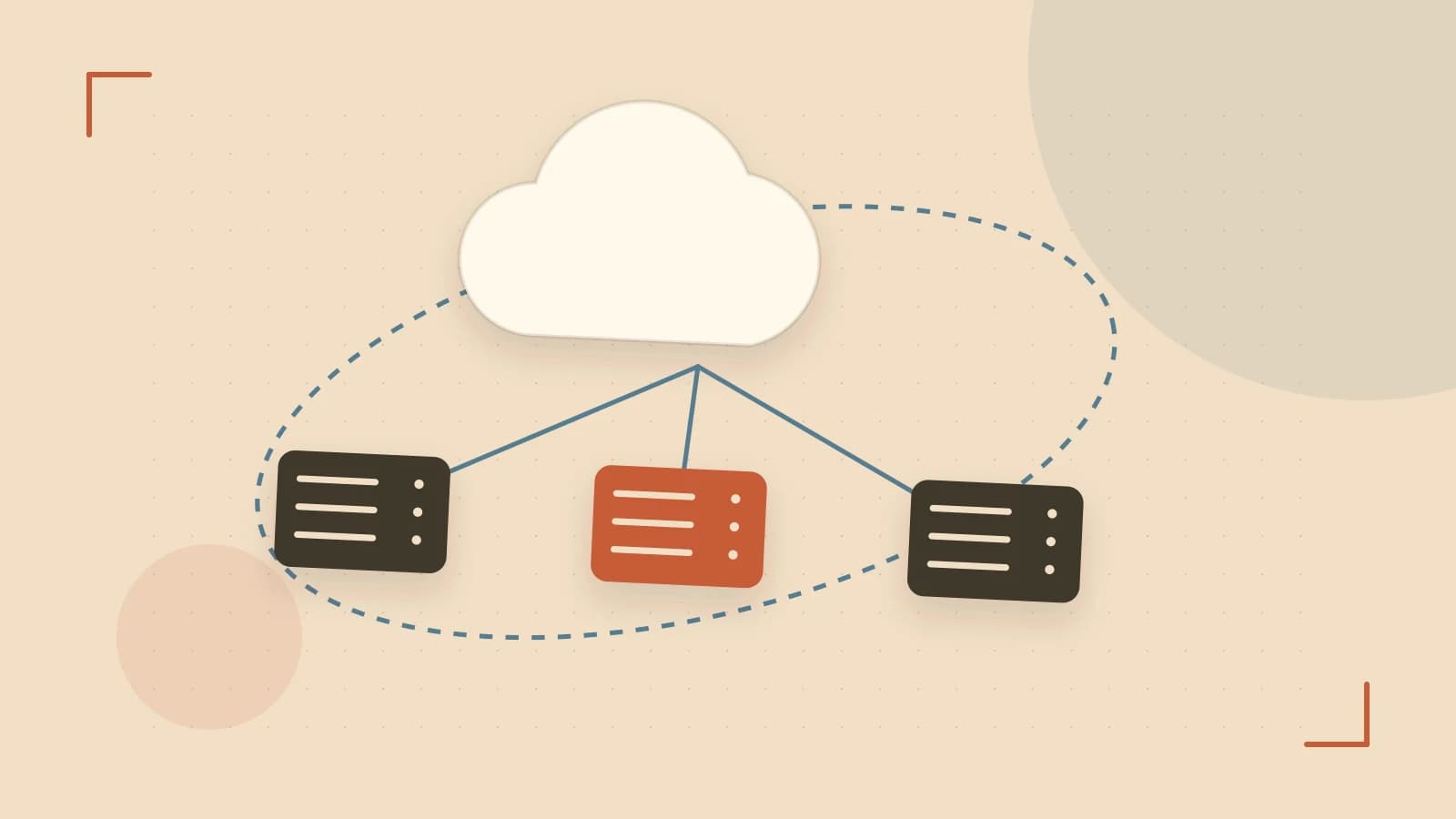
Problem: How to ship a new Cloud Run revision without interrupting users?
When you push a new version of a container to Cloud Run, the service automatically replaces the old revision. If the new code contains a bug, every request is served from the faulty revision until you roll back. This “all‑or‑nothing” model makes it hard to adopt continuous delivery safely.
Cloud Run offers a built‑in traffic‑splitting feature that lets you route a configurable percentage of HTTP(S) traffic to a specific revision. By gradually shifting traffic from the current revision to the new one, you can perform a real‑world canary test, monitor metrics, and roll back instantly if something goes wrong.
Thesis: Traffic‑splitting turns Cloud Run into a zero‑downtime canary platform.
With traffic‑splitting you:
- Deploy revisions side‑by‑side.
- Route a small slice (e.g., 5 %) of requests to the new revision.
- Observe real traffic and metrics before a full rollout.
- Rollback by re‑routing traffic to the old revision in seconds.
Key Concepts
Revisions
Each deployment of a Cloud Run service creates a revision. Revisions are immutable and have a unique name like service-00001-abcde. Traffic can be directed to any healthy revision.
Traffic Allocation
The Cloud Run API stores a traffic array for each service. Each element specifies a revisionName and a percent value. The sum of all percentages must equal 100 %.
Health Checks
Before a revision can receive traffic, it must pass its readiness checks. If a revision is unhealthy, Cloud Run will automatically route traffic to the last healthy revision, which may lead to unexpected responses during a split.
Concrete Worked Example
Below is a step‑by‑step guide to deploy two revisions of a simple service and split traffic 90 %/10 % between them. Replace placeholders with your own values.
-
Set project and region:
gcloud config set project <PROJECT_ID> gcloud config set run/region <REGION> -
Deploy the first revision (stable):
gcloud run deploy <SERVICE_NAME> \
  --image gcr.io/<PROJECT_ID>/myapp:stable \
  --platform managed \
  --allow-unauthenticated
The command returns a revision name like
myapp-00001-abcde(store it asREV1). -
Deploy the second revision (canary):
gcloud run deploy <SERVICE_NAME> \
  --image gcr.io/<PROJECT_ID>/myapp:canary \
  --platform managed \
  --allow-unauthenticated
Store the new revision name as
REV2. -
Verify both revisions are healthy:
gcloud run revisions list \
  --service <SERVICE_NAME> \
  --format "table[box](name,status)"
Both should show
ACTIVEstatus. -
Split traffic 90 %/10 %:
gcloud run services update-traffic <SERVICE_NAME> \
  --to-revision <REV1>=90% \
  --to-revision <REV2>=10%
After execution, Cloud Console’s Traffic tab will display the split. You can also query the API:
gcloud run services describe <SERVICE_NAME> \ --format "json(traffic)" -
Verify routing by sending requests:
curl -I https://<SERVICE_NAME>-<REGION>.run.appCheck the
X-Cloud-Run-Revisionheader. A 10 % chance of seeing theREV2value confirms the split. -
Gradually increase canary traffic:
gcloud run services update-traffic <SERVICE_NAME> \
  --to-revision <REV1>=70% \
  --to-revision <REV2>=30%
Repeat until you reach 100 % or decide to roll back.
Trade‑offs & Limitations
- Only HTTP(S) traffic: Traffic‑splitting does not affect background jobs or event‑driven triggers (Pub/Sub, Cloud Tasks). Those still run on the latest revision.
- Health‑check dependency: If a revision fails readiness, Cloud Run will redirect traffic to the last healthy revision. Unexpected responses can appear during a split if health checks are misconfigured.
- Rapid changes can overwhelm a new revision: Pushing 100 % traffic to a new revision before it stabilizes can cause spikes in latency or errors. Incremental increments (5 %–20 %) are safer.
- Stateful services: Cloud Run is stateless by design. If your application relies on session data or in‑memory state, traffic splitting may cause inconsistencies.
Practical Next Steps
- Automate the split flow: Use Cloud Build triggers to deploy a new revision and automatically set the initial traffic split to a low percentage (e.g., 5 %).
- Use
gcloud run services update-trafficin the build step. - Add a Cloud Monitoring alert that rolls back if latency exceeds a threshold.
- Use
- Monitor metrics: Enable Cloud Monitoring dashboards for the service. Watch
request_count,request_latency_ms, anderror_ratefor each revision.- Use
gcloud monitoring dashboards createor the console.
- Use
- Rollback strategy: If the canary fails, simply reroute all traffic back to the stable revision:
gcloud run services update-traffic <SERVICE_NAME> \ --to-revision <REV1>=100% - Document the process: Record the revision names, percentages, and any observed anomalies. This makes future rollouts smoother and helps audit trails.
With traffic‑splitting, Cloud Run becomes a robust platform for continuous delivery, allowing you to test new code under real traffic, detect problems early, and revert instantly—all without any downtime.
 cloudrun
0 replies
A thoughtful contribution can make all the difference. Be the first to share one.