Using Photon Realtime Interest Groups to Filter Network Traffic
Assign objects to Interest Groups and subscribe clients only to relevant groups to reduce bandwidth and client CPU in Photon multiplayer games.
24 Aug 2026, 04:17 UTC
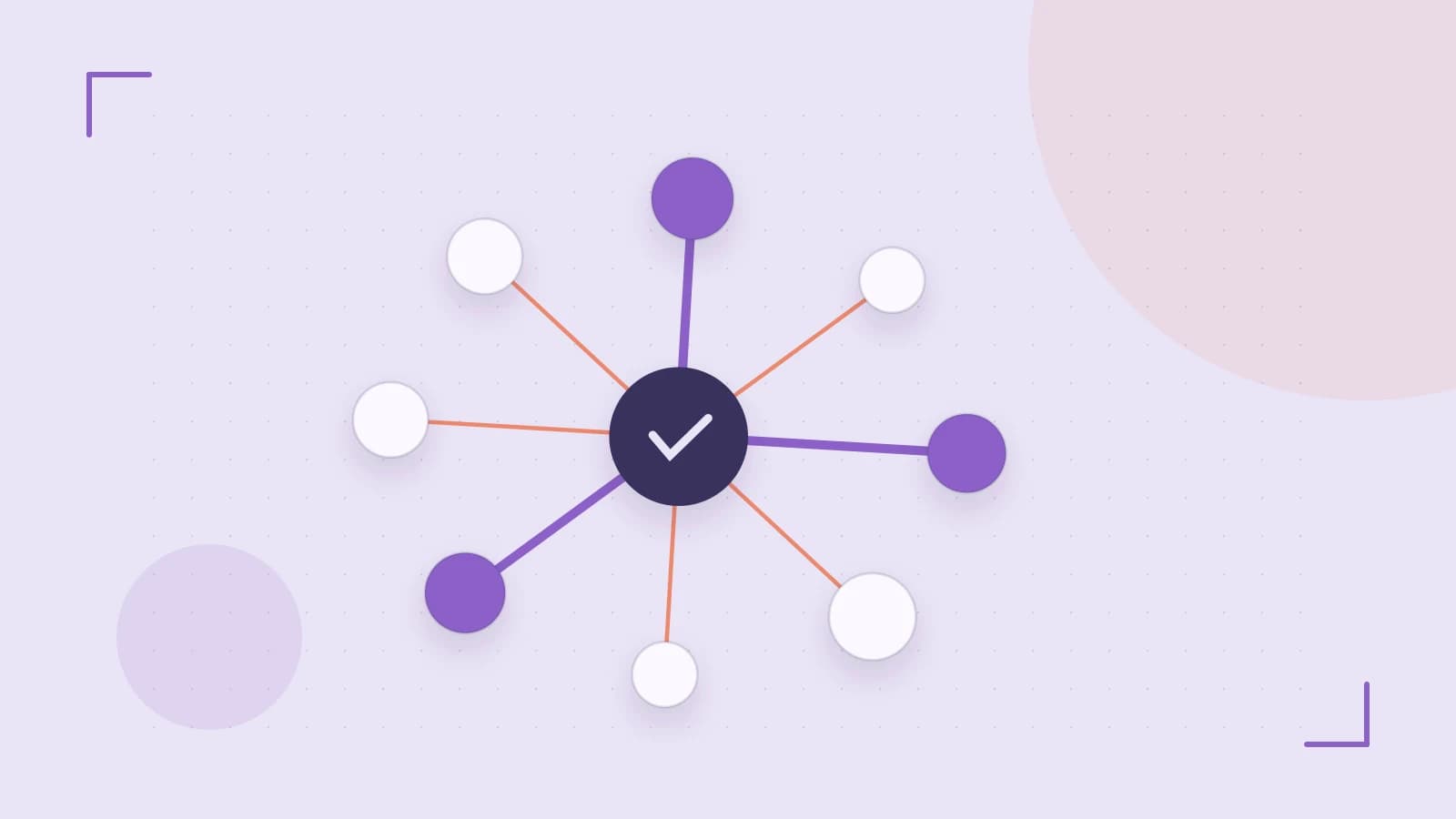
Problem: Every Client Receives Every Object Update
By default, a Photon Realtime room broadcasts synchronized object state to every connected client. In a small match this is acceptable, but as the number of networked objects grows, clients spend CPU processing updates for enemies, props, or projectiles they cannot see or interact with. Bandwidth consumption rises linearly with object count even when most objects are irrelevant to a given player.
Useful Takeaway
Use Interest Groups to split traffic into logical channels. Assign each networked object to a group ID, then tell each client which group IDs it wants to receive. The Photon server forwards only matching packets, so clients ignore objects outside their relevance zone.
How Interest Groups Filter Traffic
An Interest Group is a numeric identifier attached to a synchronized object's stream. A PhotonView is the component that binds a Unity GameObject to Photon's synchronization system. When you assign a view to a group, the server tags that object's updates with the group ID. Each client maintains a subscription list; the server filters outgoing packets so a client only receives updates for groups it has joined.
Worked Configuration: Zone-Based Group Assignment
Imagine a match with two zones. Zone 1 uses group ID 1 and Zone 2 uses group ID 2. A player standing in Zone 1 should receive updates for objects in Zone 1, and optionally Zone 2 if they stand near the border.
The following example follows the common Photon Realtime SDK pattern. Exact integer types vary by SDK version; check your API reference for whether group IDs are bytes or ints.
// Run on the owner or master client when an object spawns or changes zones.
// view is the PhotonView on the networked object.
// zoneId is the Interest Group ID for the destination zone.
public void AssignObjectToZone(PhotonView view, int zoneId)
{
    view.SetInterestGroup(zoneId);
}

// Run on the local client when the player enters or leaves a zone.
// activeZones is the set of group IDs the client should receive.
// inactiveZones is the set of group IDs the client should stop receiving.
public void UpdatePlayerSubscription(int[] activeZones, int[] inactiveZones)
{
    PhotonNetwork.SetInterestGroups(activeZones, inactiveZones);
}
Where to run: Unity client scripts executing in the local player's editor or build. Object assignment is normally performed by the object's owner or the master client, not every client.
Permissions: No special server permissions are required, but only the client that owns an object should change that object's group to avoid conflicting assignments.
Placeholders: Replace zoneId, activeZones, and inactiveZones with your game's zone identifiers.
Expected check: After calling UpdatePlayerSubscription, objects in unsubscribed groups stop updating on the local client while objects in subscribed groups continue normally.
Risk: Changing groups is a state-changing operation. If a client unsubscribes from a group while an object still exists, the object becomes invisible or frozen until the client subscribes again.
Diagnostic Verification
- Spawn three networked objects and assign them to groups 1, 2, and 3.
- On the test client, call the subscription method with only group 1 enabled.
- Object in group 1 should update position and state. Objects in groups 2 and 3 should remain static or invisible even though they exist on the server.
- Open Photon's traffic statistics or network logger and confirm incoming bytes per second drop after disabling groups 2 and 3.
- Move an object from group 1 to group 2 and confirm the client stops receiving it only after the group change and the subscription update.
Limits and Common Mistakes
Ghosting When No Client Subscribes
Ghosting occurs when an object is assigned to a group that no active client has subscribed to. The server continues simulating the object, but clients never receive its updates. If a client later subscribes, the object can appear to snap to a new position. Avoid this by ensuring at least one relevant client stays subscribed, or by destroying objects when they leave all relevant zones.
Subscription Spikes From Frequent Changes
Calling the subscription method every frame as a player crosses zone boundaries forces repeated server handshakes and can cause traffic spikes. Use a distance or time threshold so the client updates its subscription only after moving a meaningful distance into a new zone.
Interest Groups Are Not Anti-Cheat
Group filtering is a performance optimization, not a security boundary. A modified client can request every group ID and receive updates for objects it should not see. Treat hidden state, such as enemy positions in fog of war, as server-authoritative data sent only through explicit messages when the server decides the client is allowed to know.
Comparison: Interest Groups vs. Default Global Sync
| Feature | Interest Groups | Default Global Sync |
|---|---|---|
| Traffic sent to client | Only subscribed groups | All synchronized objects |
| Filtering location | Photon server | None; client receives everything |
| Client CPU impact | Lower; fewer updates to process | Higher; processes all remote objects |
| Setup effort | Requires group assignment and subscription logic | None; enabled by default |
Practical Check
Enable Photon network statistics in your test build and record incoming bytes per second while standing in an empty area. Then move into a crowded area with many objects assigned to other groups and confirm the rate does not rise proportionally to the object count. If it does, review your group assignments and client subscription list.
 photonengine
0 replies
A thoughtful contribution can make all the difference. Be the first to share one.