Using iOS Background Tasks to Keep Content Fresh Without Draining Battery
Learn how to use iOS Background Tasks to keep your app’s content up‑to‑date without draining battery. A step‑by‑step guide, code snippets, testing tips, and trade‑offs covered.
26 Mar 2026, 03:59 UTC
Why Background Tasks Matter
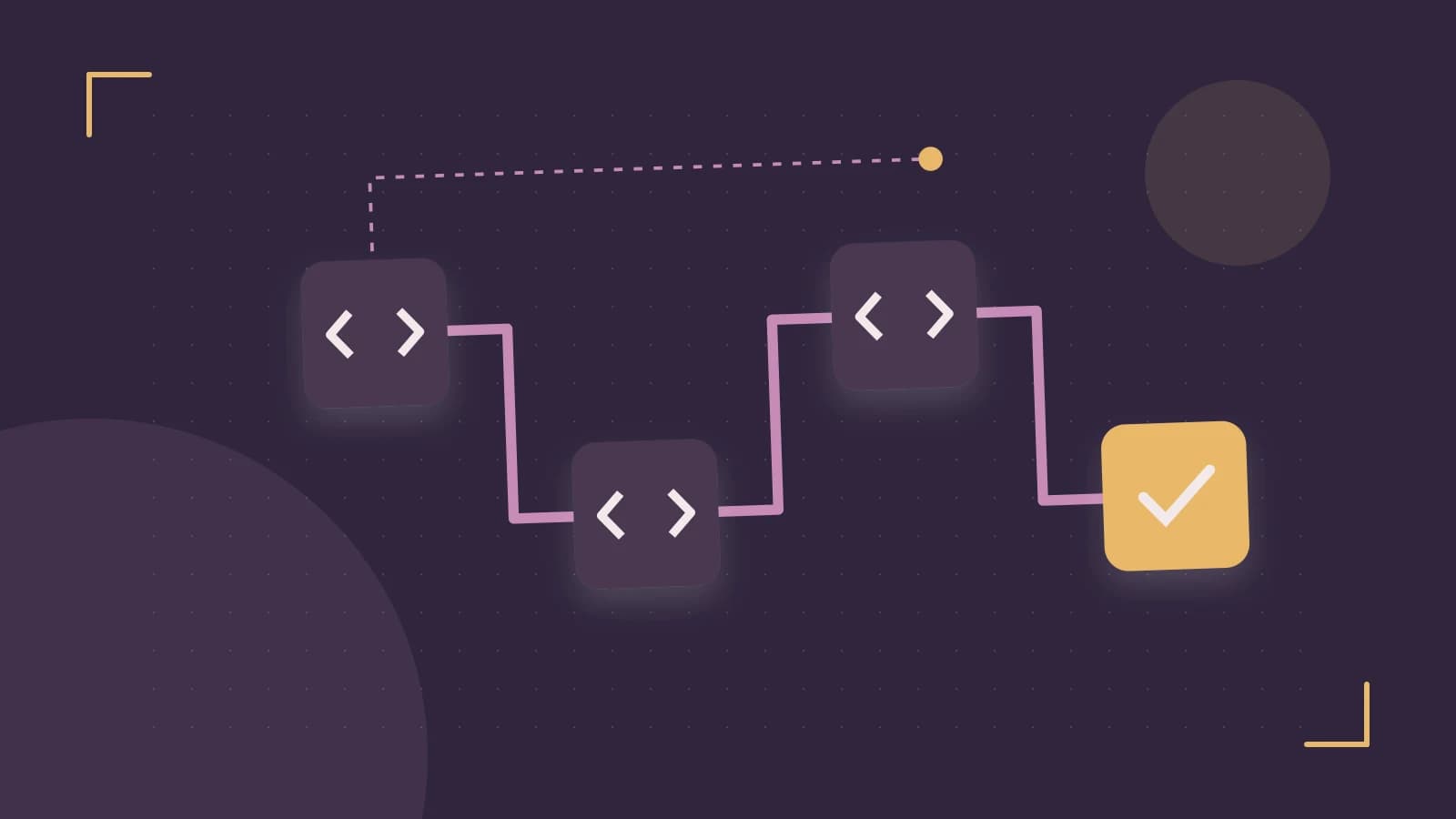
When a user scrolls past the last screen of your news app, the OS suspends the process to save battery. If the next time the user opens the app the headlines are still a day old, the experience feels stale. Apple’s Background Tasks framework solves this by letting apps schedule work that the system will run only when conditions are right—plugged in, on Wi‑Fi, low CPU load. The result is up‑to‑date content with minimal impact on battery life.
Key Concepts in the Framework
- BGTaskScheduler – the central API you use to submit tasks.
- BGAppRefreshTask – short‑lived refreshes (≈30 s) used for quick data pulls.
- BGProcessingTask – longer, maintenance‑type work (minutes) that may run while the device is idle.
- System‑controlled execution windows – the OS decides when to wake your app.
- Completion callback –
setTaskCompleted(success:)must be called or the system will throttle future launches.
Registering a Task
Every task identifier must be declared in the app’s Info.plist. Add a BGTaskSchedulerPermittedIdentifiers array and include the string you’ll use when submitting.
BGTaskSchedulerPermittedIdentifiers
    - com.example.newsapp.refresh
Without this entry the system will reject your submission and you’ll see a runtime warning.
Submitting a Refresh Task
In AppDelegate (or SceneDelegate for multi‑window apps) schedule the task during launch:
func application(_ application: UIApplication, didFinishLaunchingWithOptions launchOptions: [UIApplication.LaunchOptionsKey: Any]?) -> Bool {
    scheduleRefresh()
    return true
}

func scheduleRefresh() {
    let request = BGAppRefreshTaskRequest(identifier: "com.example.newsapp.refresh")
    request.earliestBeginDate = Date(timeIntervalSinceNow: 15 * 60) // 15 minutes from now
    do {
        try BGTaskScheduler.shared.submit(request)
    } catch {
        print("Could not schedule app refresh: \(error)")
    }
}
The earliestBeginDate is a hint; the system may launch earlier if conditions are favorable.
Handling the Task When It Runs
When the OS wakes your app, it will call the task handler you registered. Implement it in AppDelegate:
func application(_ application: UIApplication, handleEventsForBackgroundURLSession identifier: String, completionHandler: @escaping () -> Void) {
    // Not used for BGTasks – placeholder for other background work.
}

func application(_ application: UIApplication, handleTaskWithIdentifier identifier: String, completionHandler: @escaping () -> Void) {
    guard identifier == "com.example.newsapp.refresh" else { return }
    let task = BGTaskScheduler.shared.getPendingTask(withIdentifier: identifier)!
    task.expirationHandler = {
        completionHandler()
    }
    fetchLatestArticles { success in
        task.setTaskCompleted(success: success)
        completionHandler()
    }
}
In iOS 15+ you can also use the newer handle(_ task: BGTask) method:
func handle(_ task: BGAppRefreshTask) {
    task.expirationHandler = {
        task.setTaskCompleted(success: false)
    }
    fetchLatestArticles { success in
        task.setTaskCompleted(success: success)
    }
}
Key points:
- Always call
setTaskCompleted(success:)—otherwise the system assumes the task failed and may throttle subsequent launches. - The expiration handler protects you from exceeding the 30‑second window; if the system kills the task, you must mark it incomplete.
Testing and Verification
- Simulator – In Xcode’s Debug menu choose Simulate Background Fetch. The task runs immediately; watch the console for
BGTaskSchedulerlogs. - Device – Connect to a real device, enable Background App Refresh in Settings, plug it in, and wait. Use the Console.app or
log show --predicate "process == \"YourApp\""to see when the task fires. - Check
completionHandlerinvocation to confirm the task finished. If you see “Task was not completed” warnings, you’re missing the completion call.
Trade‑offs and Limitations
- No guarantee of exact timing – the system may delay the task up to an hour or more if conditions are not met.
- Short execution window – 30 s for refresh tasks. If your network call takes longer, you’ll need a
BGProcessingTaskor to split the work. - Unavailable in extensions – app extensions cannot use the framework; you must fall back to push notifications or URLSession background transfers.
- User settings – if the user disables Background App Refresh, the task will never run.
Practical Checklist Before Release
- Register all identifiers in
Info.plist. - Submit at least one task during launch; test with the simulator’s background fetch.
- Implement
setTaskCompleted(success:)in every handler. - Verify logs on a real device in a realistic environment (plugged in, Wi‑Fi).
- Handle failures gracefully—if a task fails, schedule a retry with a longer
earliestBeginDate. - Document the background behavior in your app’s help or support pages.
Conclusion
Apple’s Background Tasks framework gives developers a battery‑friendly way to keep app data fresh. By registering identifiers, scheduling tasks with reasonable windows, and always signalling completion, you can deliver a responsive experience without draining the user’s battery. Test thoroughly on real hardware, watch the system logs, and be prepared to fall back to push notifications if the user disables background refresh.
 apple
apple0 replies
A thoughtful contribution can make all the difference. Be the first to share one.