Using GitKraken's Drag-and-Drop Commit Graph for Local Merges and Rebases
Use GitKraken's drag-and-drop commit graph for local branch merges and rebases, with verification steps and rollback guidance.
17 May 2026, 06:29 UTC
Start with the graph, not the terminal
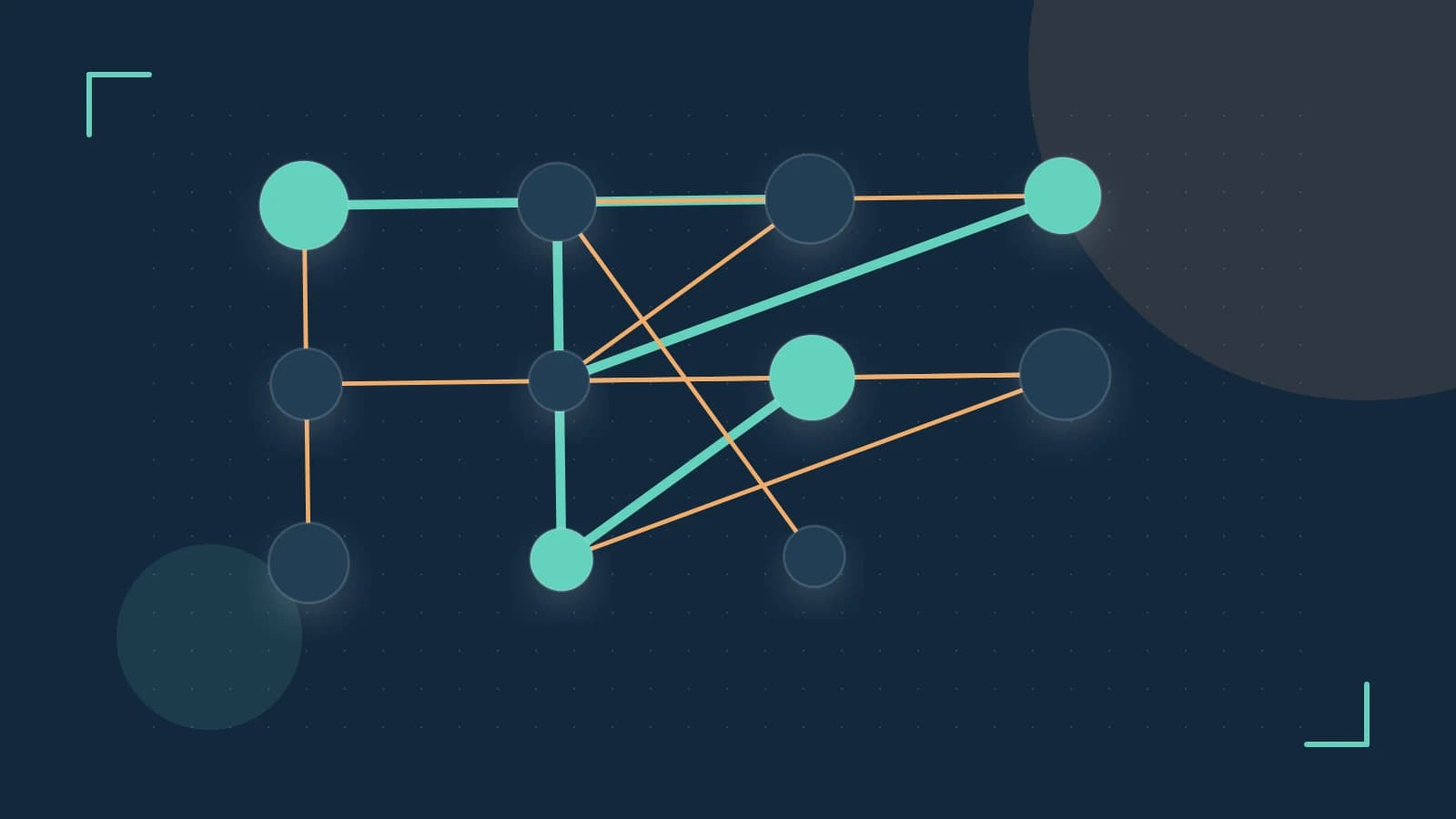
You have a feature branch with three commits and need to integrate it into main. You could run git checkout main and git merge feature-branch, but you want to see exactly which commits will be included before anything changes. GitKraken's commit graph shows local and remote branches as nodes, and dragging one branch node onto another opens a dialog that lets you choose merge or rebase before the operation runs.
The useful takeaway: drag-and-drop works well for local, unreviewed branch integration when you want visual confirmation first. It is less suitable for shared branches, audit-heavy workflows, or repositories where every operation needs to be scriptable.
What happens when you drag a branch node
In GitKraken's commit graph, each branch is a labeled pointer to a commit. Dragging the feature-branch node onto the main node opens a confirmation dialog. You choose either merge, which creates a merge commit combining both histories, or rebase, which replays the feature commits on top of main and rewrites their commit identifiers. The underlying Git command is hidden, so you do not type git merge or git rebase yourself.
If the branches touch the same lines, GitKraken opens its built-in conflict editor with side-by-side hunks and buttons to accept the current, incoming, or both versions. Resolving there completes the operation locally, but the resolution is not exported as a script teammates can reuse in plain Git.
Worked example: merge a feature branch into main
- Open the repository in GitKraken and confirm both main and feature-branch appear in the central commit graph.
- Drag the feature-branch node onto the main node.
- In the dialog, select Merge, then confirm. GitKraken creates a merge commit and moves main forward.
- Open a terminal in the same repository and run:
git log --graph --oneline --allRun this where you have read access to the local repository. No special permissions are required. Expected check: the output should show a merge commit connecting the feature-branch history to main, matching the topology shown in GitKraken's graph. This command is read-only and carries no risk of data loss.
To confirm the operation from the command line, you can also inspect the reflog:
git reflogThis shows where HEAD was before the merge, which matters if you need to undo the operation.
Where the GUI falls short
- Auditability: Because GitKraken hides the underlying commands, a reviewer cannot see exactly which flags were used from the GUI alone. Pair it with occasional command-line review for audited or regulated workflows.
- Portability: Conflict resolutions made in GitKraken's editor exist only in your working tree. They do not produce a reusable merge script for teammates using
git mergetoolor the command line. - Performance: Large repositories with dense histories may render the graph more slowly than
git log, making navigation sluggish. - Accidental operations: An unintended drag can start a merge or rebase. Always read the confirmation dialog before clicking the final button.
Undoing a local merge or rebase
Because merging and rebasing change repository state, rollback is relevant. If the operation has not been pushed to a remote, run:
git reset --hard ORIG_HEADRun this in the repository terminal. ORIG_HEAD records the position of HEAD before the merge or rebase. This is a destructive operation: it discards any uncommitted changes and rewrites local branch history. Do not use it after pushing to a shared remote unless you understand the consequences of force-pushing.
A safer first step is to run git reflog and identify the commit before the operation, then reset to that specific commit rather than relying on ORIG_HEAD alone.
Practical check and closing
After any GUI merge or rebase, compare GitKraken's graph with git log --graph --oneline --all. If the topologies match and your tests pass, the operation succeeded. If they diverge, use the command line to inspect and correct before pushing.
Use GitKraken's drag-and-drop graph for quick local integrations where visual confirmation helps, but keep the terminal available for verification, scripting, and anything that needs an auditable trail.
 gitkraken
0 replies
A thoughtful contribution can make all the difference. Be the first to share one.