Using Discloud’s Scheduled Restarts to Keep Discord Bots Stable
Learn how to use Discloud’s built‑in cron‑style scheduler to automatically restart Discord bots, curbing memory leaks while minimizing manual downtime.
03 Oct 2026, 07:56 UTC
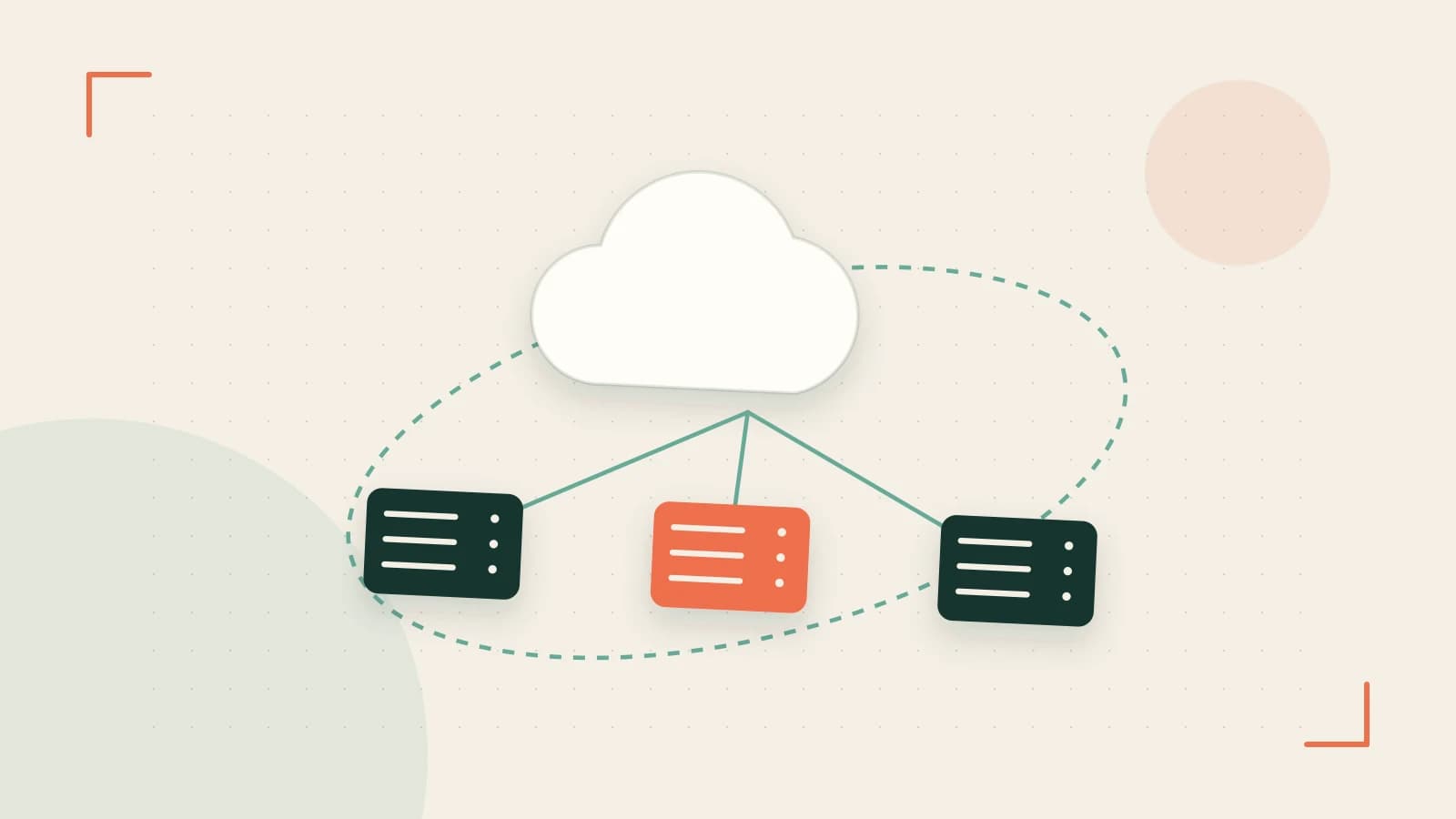
Problem: Memory Creep in Long‑Running Discord Bots
Discord bots built with Node.js often accumulate memory over hours or days of operation. Unreleased buffers, lingering event listeners, or gradual cache growth can push RSS usage upward, eventually causing sluggish responses or crashes. A full process restart reclaims that memory, but doing it manually means scheduling downtime, remembering to run the command, and risking human error.
Thesis: Discloud’s Built‑In Scheduler Automates the Refresh
Discloud provides a cron‑style scheduler that can stop the current bot instance and start a fresh one at intervals you define. The platform preserves the bot’s token, environment variables, and file system, so the only visible effect is a brief pause while the new process boots. This turns a manual, error‑prone task into a repeatable, low‑maintenance operation.
How the Scheduler Works
When you enable a scheduled restart, Discloud:
- Sends a SIGTERM to the running Node.js process, allowing it to finish in‑flight requests.
- Waits for the process to exit (or forces a kill after a short grace period).
- Launches a new container with the same image, environment variables, and mounted volumes.
- Reports the restart event in the instance’s log stream.
Because the environment is unchanged, you do not need to re‑secrete tokens or rebuild the bot’s code between cycles.
Configuring a Safe Restart Interval
In the Discloud dashboard:
- Select your bot’s service.
- Open the Settings tab and find Scheduled Restarts.
- Toggle the switch to Enabled.
- Enter a cron expression. A common starting point is
0 */4 * * * (at minute 0 of every 4th hour). - Save the change.
Where to run: The configuration is done entirely in the web UI; no CLI is required. You must have the Owner or Admin role on the Discloud project.
Expected check: After saving, look at the Logs panel. You should see a line similar to [info] Scheduled restart triggered at 2026-10-12T16:00:00Z followed by the standard startup output of your bot.
Risk: If a user issues a command exactly during the restart window, that command will fail or be delayed until the new instance is ready. Choose an interval that balances memory recovery with acceptable downtime.
Trade‑Offs and Limitations
- In‑flight interruption: Any command being processed when the SIGTERM arrives will be terminated. Design your bot to be idempotent or to retry on failure.
- Over‑aggressive scheduling: Restarting every few minutes wastes CPU and can increase gateway reconnects, potentially hitting Discord’s rate limits.
- No state persistence across restarts: In‑memory caches (e.g., a Map of user cooldowns) are lost. Move persistent data to a database or file store if you need it to survive a restart.
Practical verification:
- Before enabling the scheduler, record the bot’s RSS over 24 hours using Discloud’s Metrics tab or an external tool like
pm2. - Enable the scheduler with a modest interval (e.g., every 6 hours).
- After 48 hours, compare the RSS graph. A stable or saw‑tooth pattern that peaks just before each restart indicates the scheduler is reclaiming memory.
- Optionally, send a test command (e.g.,
!ping) one minute before a scheduled restart and note the latency; then send the same command one minute after the restart to confirm the bot is responsive.
If memory continues to climb despite restarts, investigate leaks in your code rather than relying solely on the scheduler.
Closing: Make the Restart Routine Hands‑Free
Discloud’s scheduled restarts turn a tedious operational chore into a reliable safety net for Discord bots. By picking a cron interval that matches your bot’s memory growth rate, verifying the impact with metrics, and accepting the brief pause as a trade‑off for stability, you can keep your bot responsive without constant manual intervention. To revert, simply disable the scheduler in the same Settings panel—no code rollback is required.
 discloud
0 replies
A thoughtful contribution can make all the difference. Be the first to share one.