Use Windows 8 Storage Spaces to Mirror Two Drives Without a RAID Card
Create a mirrored virtual disk from two internal drives in Windows 8, with caveats about end of support and why mirroring is not backup.
17 Aug 2025, 23:25 UTC
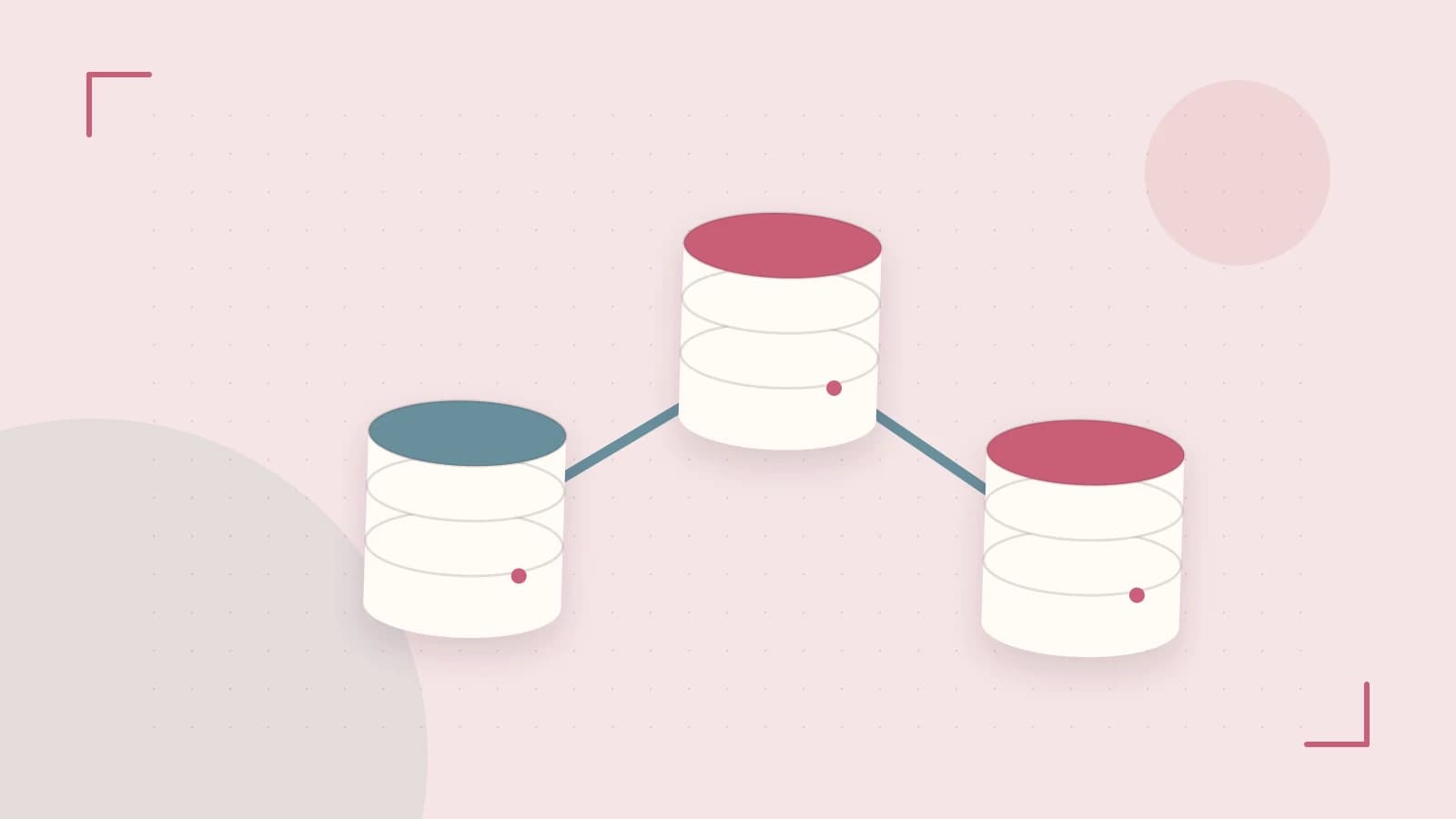
Two drives, one failure away from data loss
You have a desktop with two empty internal SATA drives. You want to store project files, and you cannot afford to lose them if one drive dies. Buying a hardware RAID controller is overkill, and Windows 8 includes a software feature called Storage Spaces that can combine physical drives into a storage pool and present a virtual disk with resiliency.
The useful takeaway: you can create a two-way mirror so the system keeps running after one drive fails, but this is not a backup, and Windows 8 is out of support, so use this for isolated or lab scenarios only.
Terms and how the pieces fit
A storage pool is a group of physical drives that Windows manages together. A virtual disk, also called a storage space, is the volume you see in File Explorer, built from capacity in that pool. Thin provisioning lets the virtual disk report a larger size than the physical drives hold, consuming space only as files are written. A two-way mirror writes every block to two drives, so one drive can fail without data loss.
Mirror versus parity
| Resiliency | Drive failure tolerance | Capacity cost | Write performance |
|---|---|---|---|
| Two-way mirror | One drive | About half of pool capacity | Near single-disk speed |
| Parity | One drive | Less than mirror | Slower, especially for small writes |
Worked example: create a two-way mirror
This example assumes two identical internal drives with no data you need to keep, and a local administrator account. Creating a pool changes drive state, so back up anything important first.
Check whether Storage Spaces is available
- Open Control Panel and select Storage Spaces.
- Choose Create a new pool and storage space.
- Select the two drives and confirm the resiliency options include Two-way mirror.
If the option is missing, your edition or hardware may not expose it. Verify the exact Windows 8 image before planning.
PowerShell alternative
Run these in an elevated PowerShell session. Replace placeholder names as needed.
# List storage cmdlets available on this build
Get-Command -Module Storage

# Identify disks eligible for pooling
Get-PhysicalDisk -CanPool $true

# Example: create a pool from two poolable disks
$disks = Get-PhysicalDisk -CanPool $true | Select-Object -First 2
New-StoragePool -FriendlyName "LabMirrorPool" -StorageSubsystemFriendlyName "Windows Storage*" -PhysicalDisks $disks

# Example: create a thin-provisioned two-way mirror virtual disk
New-VirtualDisk -StoragePoolFriendlyName "LabMirrorPool" -FriendlyName "LabMirror" -ResiliencySettingName Mirror -Size 1TB

# Initialize and format: identify the new disk number from Get-Disk, then
Initialize-Disk -Number [DiskNumber] -PartitionStyle GPT
New-Partition -DiskNumber [DiskNumber] -UseMaximumSize -DriveLetter E
Format-Volume -DriveLetter E -FileSystem NTFS -Confirm:$false
Expected checks: the virtual disk should appear in Disk Management and File Explorer. Resiliency status should show as OK. Risks: creating a pool can erase existing data on the selected drives, and cmdlet availability differs between Windows 8 and 8.1 editions.
Limitations and what to verify
- Mirroring protects against one drive failure only. It does not protect against accidental deletion, corruption, ransomware, fire, or theft. Keep regular backups on separate media.
- Windows 8 original release is out of support and no longer receives security updates. Do not use it for internet-facing or production workloads.
- Avoid USB drives for production pools; unexpected disconnects can degrade the pool. Prefer internal SATA or SAS drives.
- Parity uses less capacity than mirroring but has a write penalty and slower rebuilds.
Practical verification: run winver to confirm the edition and build, then check Microsoft's Windows lifecycle fact sheet for the exact end-of-support date. Before relying on a pool, create a small mirrored test disk on spare drives, copy files, disconnect one drive, and confirm read/write continues.
Closing
Windows 8 Storage Spaces can turn two internal drives into a fault-tolerant volume without extra hardware. Treat it as a convenience for isolated systems, confirm your exact edition supports it, and never replace backups with mirroring.
 windows8
0 replies
A thoughtful contribution can make all the difference. Be the first to share one.