Turn GitHub Events Into Real‑Time Chat with Gitter’s Built‑In Integration
Keep GitHub events in your chat rooms with Gitter’s built‑in integration. Install the GitHub App, pick events, and watch real‑time updates appear in Gitter. Learn the setup, limits, and best practices in this concise guide.
03 Apr 2026, 21:15 UTC
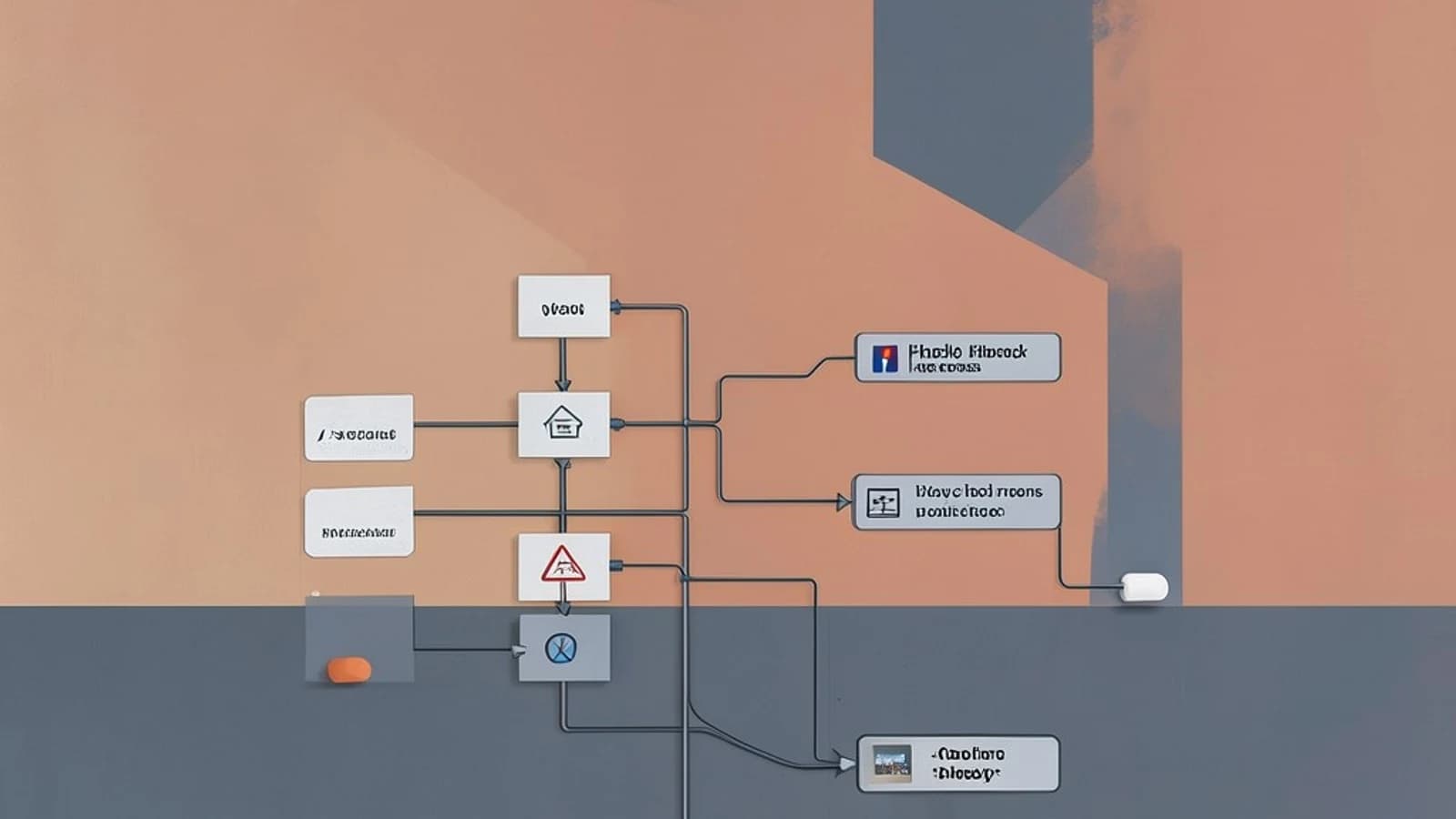
Problem: Keeping Your Team Informed Without Leaving Chat
When a repository changes—think a new pull request, a comment, or a push—team members often have to switch to GitHub to see the details. This friction slows decision‑making and can cause important updates to slip through the cracks. The goal is to surface GitHub events directly inside the chat rooms your team already uses.
How Gitter Turns Repository Events into Chat Messages
Gitter’s GitHub integration is a webhook‑based bridge. A GitHub App installed on a repository sends structured payloads to Gitter, which parses the event type and posts a formatted message in a selected room. The message includes:
- Event type (e.g.,
pull_request) - Author name
- Short preview (title, action)
- Link back to the GitHub event
Supported events out of the box are pull_request, issue, push, and comment. No custom webhook logic is required.
Step‑by‑Step Configuration
1. Create or Choose a GitHub Repository
Use a test repo for verification. Example placeholder: https://github.com/your-org/your-repo.
2. Install the Gitter App on GitHub
curl -X POST \
  -H "Authorization: token $GITHUB_TOKEN" \
  -H "Accept: application/vnd.github.v3+json" \
  https://api.github.com/orgs/your-org/installation/repositories \
  -d '{"repository_ids": [12345678]}'
Replace $GITHUB_TOKEN with a personal access token that has repo scope, and 12345678 with your repo’s ID. This step registers the repo with the Gitter GitHub App.
3. Configure the Integration in Gitter
- Navigate to
https://gitter.im/settings/githubin your browser. - Click Add GitHub App and follow the OAuth flow to authorize the app.
- After authorization, the UI lists available repositories. Select the one you just installed the app on.
- Choose the target chat room (public or private). The room must exist beforehand.
- Pick which events to forward. The default includes all four supported types.
- Save changes.
At this point, Gitter is listening for webhook events from the repo.
4. Verify the Connection
Trigger a pull request in the repository:
- Create a new branch and push it to GitHub.
- Open a pull request against
main. - Check the target Gitter room. A message should appear similar to:
<strong>alice</strong> opened a pull request <a href="https://github.com/your-org/your-repo/pull/42">#42: Add new feature</a>
To confirm that the event was filtered correctly, disable pull_request in the Gitter settings and repeat the PR. No new message should surface.
Example Workflow Table
| GitHub Event | Gitter Message Format |
|---|---|
| push | <strong>bob</strong> pushed 3 commits to feature |
| issue | <strong>carol</strong> opened issue #101 |
| comment | <strong>dave</strong> commented on #42 |
| pull_request | <strong>alice</strong> opened pull request #42 |
Trade‑Offs & Limitations
- Privacy: The GitHub App must have read access to the repo, and messages are posted in plain text. Sensitive data (e.g., secrets) can leak if included in commit messages or comments.
- Room Visibility: For private rooms, only members can see the messages. Ensure the room’s membership matches your team’s composition.
- Event Volume: A busy repo can generate dozens of events per minute, flooding the chat. Mitigation strategies include:
- Use a dedicated “notifications” room.
- Filter events in the Gitter settings to only the most critical ones.
- Combine multiple events into a daily digest using a separate bot (outside Gitter’s built‑in feature).
- No Encryption: Gitter does not encrypt webhook payloads. If your repo contains confidential data, consider adding a middleware layer that scrubs sensitive fields before forwarding to Gitter.
Takeaway
Gitter’s built‑in GitHub integration is a quick, zero‑code way to surface repository activity inside your chat rooms. By installing the GitHub App, selecting events, and pointing to the right room, teams can stay aligned in real time without leaving the conversation. Just keep an eye on privacy, room visibility, and event volume to maintain a clean, useful notification flow.
 github
 gitter
0 replies
A thoughtful contribution can make all the difference. Be the first to share one.