Trello Butler Automation: Building Reliable Board Rules Without Code
Learn to build reliable Trello Butler rules: a worked triage example, trigger/action catalog, async execution, plan limits, and the top five misconfiguration patterns that waste quota or break workflows.
20 Aug 2025, 05:06 UTC
The Problem: Manual Repetition on Trello Boards
Teams using Trello often repeat the same steps: moving a card to a review list, adding a label, assigning a teammate, and setting a due date. Doing this manually for every card wastes time and introduces inconsistency. Trello Butler solves this with declarative, no‑code automation rules that run on board events.
Useful Takeaway
Butler lets you define a trigger (e.g., a card enters a specific list) and a sequence of actions (label, assign, due date). Rules are board‑scoped, execute asynchronously, and respect plan‑based automation quotas. Understanding trigger scope, async behavior, and naming dependencies prevents the most common misfires.
Worked Configuration: Triage Rule for a Review List
Create a rule that runs when a card is moved into the list named Review:
- Open the board → click Automation (Butler icon) → Rules → Create Rule.
- Choose trigger: When a card is moved into list → type
Review. - Add actions in order:
- Add label →
Needs Review(create if missing). - Assign member → select
Alice(must be a board member). - Set due date →
in 3 days(relative to rule execution).
- Add label →
- Save the rule. Butler stores the trigger condition and action sequence on the board.
You can also write the same rule in natural language in the Butler command input: when a card is moved into list "Review", add label "Needs Review", assign to @Alice, set due date to 3 days from now.
How the Mechanism Works
Trigger Types
Butler supports a fixed set of triggers:
- Card moved into list – fires when a card enters a list with an exact name match.
- Due date reached – fires at the moment a card’s due date passes.
- Button pressed – manual trigger via a card or board button.
- Card created, updated, archived – broader events; use with caution.
Action Catalog
Actions are limited to built‑in board operations:
- Move card to list
- Add/remove labels
- Assign/unassign members
- Post comment
- Archive card
- Set/change due date (absolute or relative)
No conditional branching, loops, or external API calls are available within a single rule.
Execution Model
Rules run asynchronously after the trigger event. The Trello backend queues the action sequence; there is no guarantee of immediate execution. Concurrent edits on the same card can cause race conditions: an action may apply to a card state that changed after the trigger fired.
Operational Limits
| Limit | Description |
|---|---|
| Automation quota | Monthly rule runs capped by Trello plan (Free, Standard, Premium, Enterprise). Exceeding the quota pauses further executions until the next cycle. |
| Rules per board | Each board has a maximum number of active rules (varies by plan). |
| Action count per rule | A single rule can contain multiple actions, but complex sequences increase execution time and quota consumption. |
Check your current usage in Automation → Usage.
Common Mistakes and How to Avoid Them
1. Overly Broad Triggers
Using when a card is updated fires on every field change (description, checklist, comment). This can cause the rule to re‑run dozens of times per card, exhausting quota and creating duplicate labels or assignments. Fix: Narrow the trigger to a specific list move or a custom button.
2. Circular Rules
Rule A moves a card to list Done; Rule B triggers on card moved to Done and moves it back to In Progress. The card bounces indefinitely. Fix: Audit rule triggers and actions together; add a label condition (e.g., only run if label Processed is absent) or use a button for one‑way transitions.
3. Renaming Lists Breaks Triggers
Triggers reference list names literally. Renaming Review to Code Review silently disables the rule. Fix: After renaming a list, open the rule and update the trigger list name. Butler does not auto‑update references.
4. Assuming Instant Execution
Because rules are async, a card may not have the label or assignee immediately after the move. Downstream automations (e.g., a webhook listening for label changes) should tolerate a delay of seconds to minutes.
5. Expecting Conditional Logic
Butler cannot evaluate if card has label X then do Y else do Z in one rule. Workaround: create two rules with mutually exclusive triggers (e.g., separate buttons) or use a Power‑Up that offers conditional workflows.
Practical Verification Steps
- Create a test board (private, no teammates needed).
- Open Automation → Rules and build the triage rule above.
- Add a test card to the board, then drag it into the
Reviewlist. - Observe: within a few seconds the card should gain the
Needs Reviewlabel, show Alice as assignee, and display a due date three days out. - Check Automation → Usage to confirm one rule run consumed.
- Rename the
Reviewlist toCode Reviewand move another card; the rule will not fire. Edit the rule to match the new name and test again.
Limitations to Keep in Mind
- Plan dependency: Free and Standard plans have low automation quotas; Premium/Enterprise offer higher limits and advanced features like scheduled commands.
- No transactional guarantees: If two rules trigger on the same card simultaneously, the final state depends on execution order.
- No external integrations: Butler cannot call a webhook, update a Google Sheet, or post to Slack directly. Use Trello’s native Power‑Ups or an external automation platform (e.g., Zapier, Make) for cross‑service workflows.
- Board‑scoped only: Rules cannot trigger across boards or workspaces. For cross‑board automation, consider a workspace‑level Power‑Up or API‑based solution.
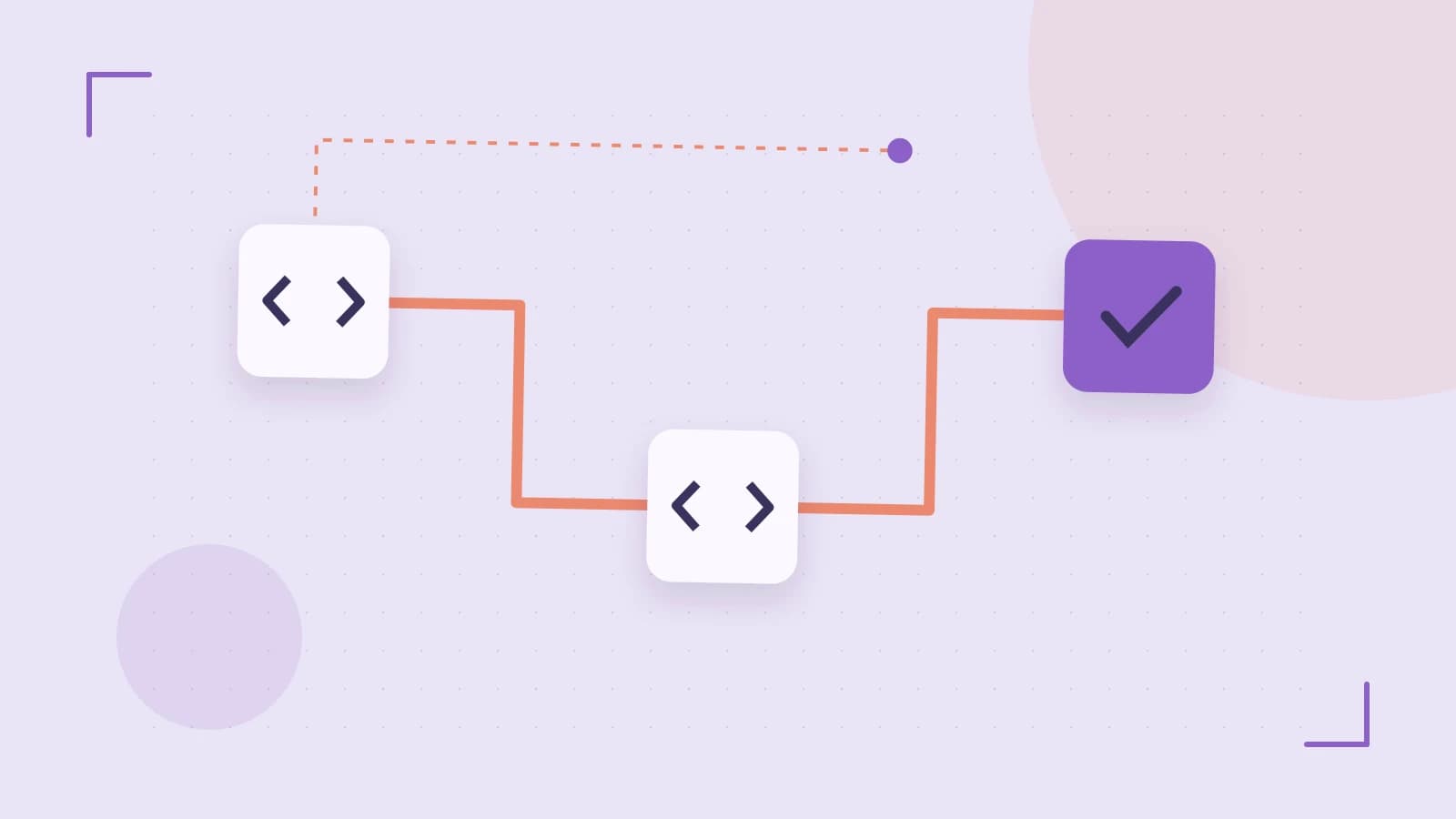
Diagram Labels
- Trigger: Card moved to list
- Action: Add label, assign, set due date
- Limit: Plan‑based automation quota
- Risk: Race condition on concurrent edits
 trello
0 replies
A thoughtful contribution can make all the difference. Be the first to share one.