Stop Duplicating Task Lists in Notion: Use Filtered Views Instead
Learn why a single Notion database with filtered views keeps task lists in sync and avoids the drift caused by duplicated copies.
14 Sept 2026, 13:53 UTC
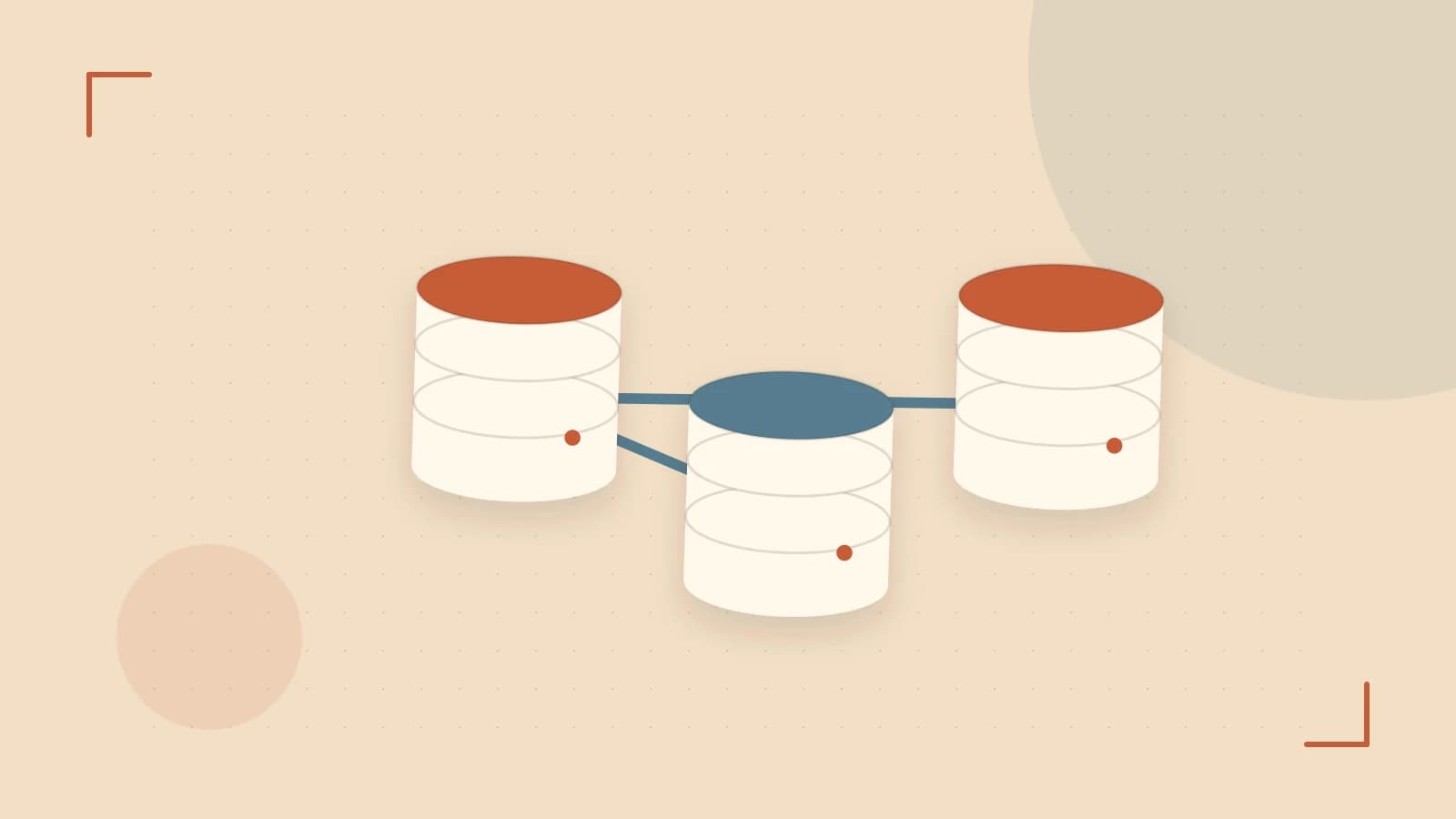
The problem: duplicated task lists drift out of sync
Many teams copy the same task list into different pages—one for a personal dashboard, another for a project roadmap, a third for a weekly meeting. Each copy lives as a separate block or database. When a task is updated in one place, the others stay stale unless someone remembers to edit every copy. Over time the lists diverge, causing missed work and confusion.
Thesis: one source of truth, many filtered views
Instead of duplicating rows, keep a single canonical database and create saved views that show only the rows you need. A view stores its own filter, sort, and grouping but always reads the same underlying data. When you edit a task in any view, the change appears everywhere because there is only one source of truth.
Worked example: a Tasks database with two practical views
- Create a full‑page database called Tasks.
- Add three properties: Status (select: To Do, In Progress, Done), Owner (person), and Due date (date).
- Add a few sample rows with different owners and due dates.
- Click + Add a view, choose Table, name it My open tasks. In the filter bar set:
- Owner → is → @me
- Status → is not → Done
- Sort by → Due date → ascending
- Add another view, choose Board, name it Team board. Group by Status. No filter needed; this view shows all tasks.
- Now open the My open tasks view. You see only your own incomplete items. Switch to the Team board view and you see the full set, grouped by status.
- Edit a task’s status in either view; the change reflects instantly in the other view because both read the same rows.
Limitation: views are not access controls
Anyone who can open the database can switch between views and see the unfiltered data. A filtered view does not hide rows from a teammate who has database access; it only changes what is shown by default. To restrict who can see certain tasks, set permissions at the page or teamspace level, or use separate databases with appropriate sharing.
Actionable closing: audit and consolidate
- Search your workspace for duplicated task lists (look for similar tables or databases with the same columns).
- Choose one of them to become the canonical Tasks database.
- Move any unique rows into that database (use copy‑paste or the Move to option).
- Delete the duplicate blocks.
- Re‑create each audience’s list as a filtered view using the steps above.
- Periodically check the view filters to ensure they still match the intended audience.
 notion
0 replies
A thoughtful contribution can make all the difference. Be the first to share one.