Shopware 6 post-purchase automation: Flow Builder, plugin, or scheduled task
Choose Shopware 6 post-purchase automation by constraints: Flow Builder for no-code auditable changes, plugin for custom control, scheduled task for batch work.
17 Sept 2025, 06:36 UTC
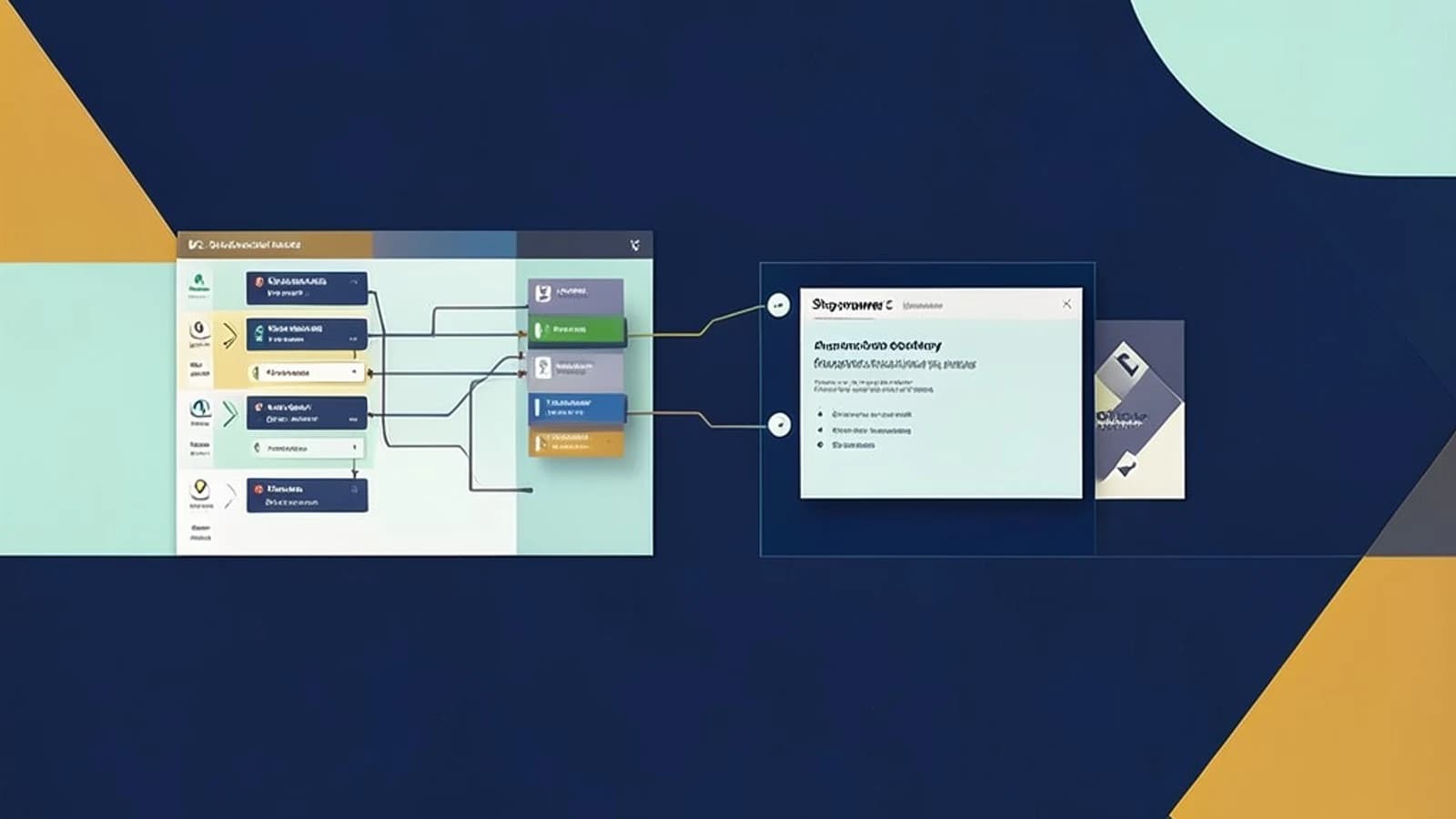
Decision and constraints
Post-purchase automation in Shopware 6 forces a choice between speed of configuration and control over execution. The useful takeaway is to start with Flow Builder when marketing or operations must edit logic without a deploy, and switch to a plugin with the message queue only when built-in actions cannot handle the required branching, retries, or external system integration.
The decision is how to run actions after an order is placed, for example tagging a customer, creating a follow-up document, or sending a webhook to an ERP. Constraints that drive the choice:
- Marketing or operations must change conditions and actions without a code deploy.
- The shop must handle sustained volume, for example more than 500 orders per minute, without adding latency to checkout.
- Executions must be auditable from the admin UI for compliance and troubleshooting.
- The setup must survive Shopware 6 minor upgrades with minimal rework.
This guide assumes Shopware 6.6 or later. Flow Builder triggers, conditions, and actions differ between versions, so verify the available options in your admin before building.
Supported options compared
| Approach | Where defined | Change cost | Execution model | Auditability |
|---|---|---|---|---|
| Flow Builder | Admin UI, Settings > Flow Builder | No code | Synchronous plus async actions | Built-in flow log |
| Event subscriber plugin | PHP plugin | Deploy plus tests | Synchronous on event | Custom logging required |
| Scheduled task | Plugin plus admin config | Deploy plus config | Batch async | Task log in admin |
Trade-offs by constraint
Flow Builder offers no-code changes and a built-in flow log that shows the trigger, condition result, and action result for each order. It is limited to the triggers, conditions, and actions supported by your Shopware 6 version. Complex branching, custom retry policies, or external API mapping often require a custom action built as a plugin, which reintroduces upgrade compatibility work.
An event subscriber gives full PHP control and low latency for simple logic. A synchronous subscriber runs inside the checkout request, so heavy work increases response time and error rate. Auditability must be implemented manually, and every change requires a deploy and tests.
A scheduled task decouples heavy work from checkout and improves response time, but adds latency between order placement and side effects. It requires idempotent handling and monitoring of the task schedule to avoid missed runs. Idempotent means the same order can be processed more than once without causing duplicate side effects.
Async actions in Flow Builder and message queue processing both rely on Messenger workers running. Messenger is Symfony's message bus for asynchronous job processing. Missing workers cause a silent backlog and missed automations.
Concrete implementation: Flow Builder no-code path
A common post-purchase flow tags the customer and notifies an external system when payment is paid.
- Trigger: Order placed
- Condition: Payment state equals paid
- Actions: Add customer tag, Send webhook
Create the flow in Settings > Flow Builder, save it, and activate it. Open Settings > Flow Builder > Logs to inspect execution for a specific order. The log confirms whether the trigger fired, the condition matched, and each action succeeded.
Concrete implementation: plugin with message queue
When custom retry logic or data transformation is needed, create a plugin under custom/plugins/YourPlugin in the Shopware project root. Required permission: write access to custom/plugins as the shop system user. Subscribe to CheckoutOrderPlacedEvent, check the payment state, and dispatch a message for async processing.
// src/Subscriber/PostPurchaseSubscriber.php
namespace Acme\PostPurchase\Subscriber;

use Shopware\Core\Checkout\Order\Event\CheckoutOrderPlacedEvent;
use Symfony\Component\Messenger\MessageBusInterface;

class PostPurchaseSubscriber
{
    public function __construct(private MessageBusInterface $bus) {}

    public function onCheckoutOrderPlaced(CheckoutOrderPlacedEvent $event): void
    {
        $order = $event->getOrder();
        if ($order->getTransactionState() !== 'paid') {
            return;
        }

        $this->bus->dispatch(new PostPurchaseMessage($order->getId()));
    }
}
After placing the files, activate the plugin and run composer dump-autoload in the project root. Implement a message handler for PostPurchaseMessage and start the Messenger consumer, for example bin/console messenger:consume async, as the shop user. Replace async with your configured transport name.
Validation checklist
- Place test orders in staging with paid and unpaid payment states.
- Open Settings > Flow Builder > Logs and confirm the flow fired, the condition matched, and actions completed for the paid order.
- Verify the customer tag appears on the customer record and the webhook reached the target system.
- Run bin/console messenger:stats via SSH as the shop user to observe queue depth. Expected check: depth stays stable under load. A growing backlog means workers are not keeping up.
For the plugin path, confirm the message was consumed and no errors appear in the handler logs. For either path, open the test order in the admin and check the customer profile for the expected tag.
Limitations and practical check
Flow Builder actions and triggers are version dependent in Shopware 6. Custom actions require a plugin and are subject to upgrade compatibility. Synchronous event subscribers run in the checkout request, so heavy work can increase response time and error rate. Async actions rely on Messenger workers running continuously; missing workers cause silent backlog and missed automations.
Practical way to check the result: place one test order, note the order ID, open Settings > Flow Builder > Logs, filter by that order ID, and confirm the trigger, condition, and actions are recorded. For queue-based work, run bin/console messenger:stats before and after a burst of test orders and confirm depth returns to baseline.
 shopware