Preventing State Corruption: Implementing S3 and DynamoDB Remote Backends in Terraform
Stop risking state corruption. Learn how to move Terraform state to S3 and use DynamoDB to prevent concurrent modifications in team environments.
03 Jul 2026, 14:14 UTC
The Danger of the Local State File
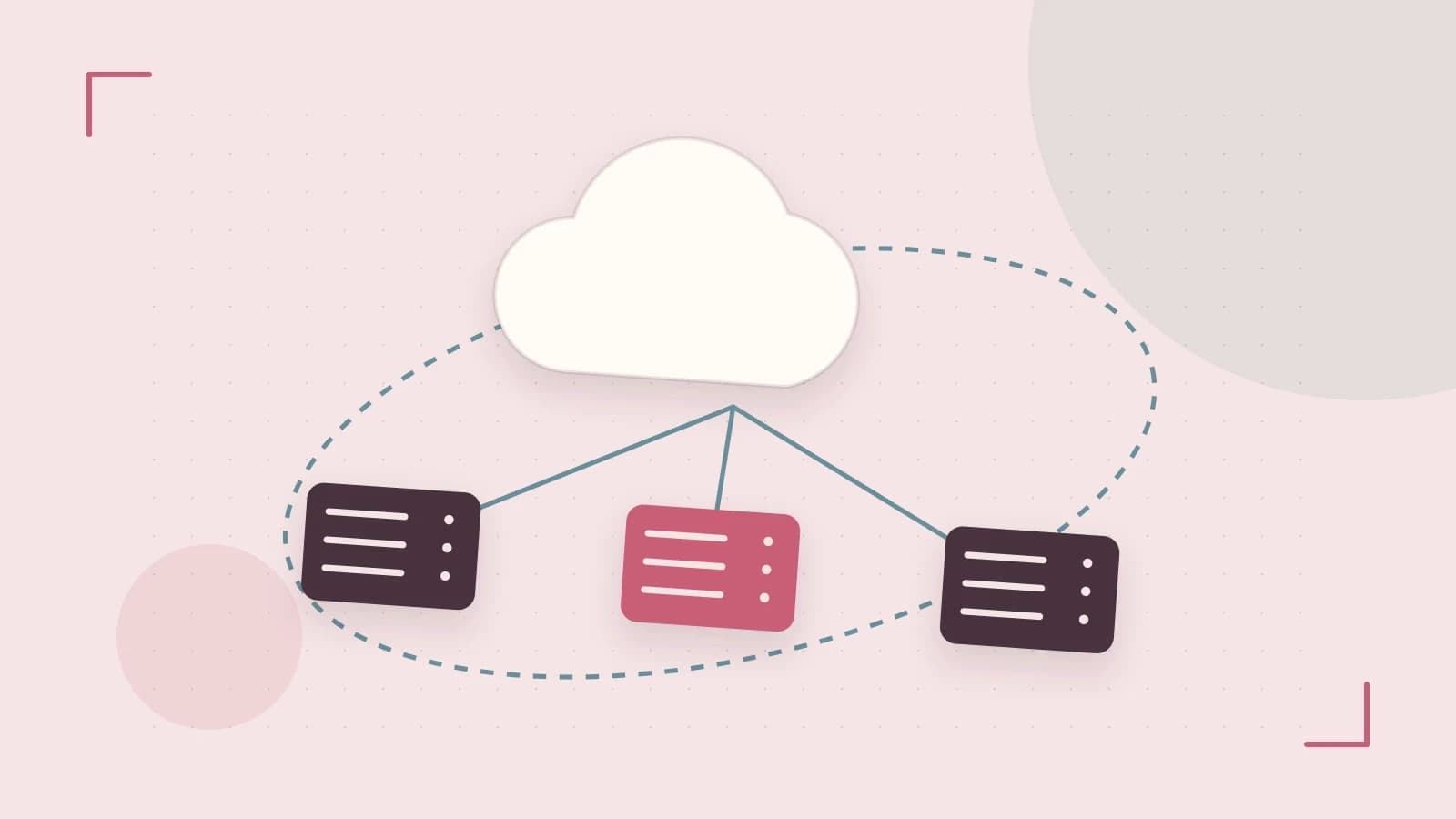
By default, Terraform stores the mapping between your code and your cloud resources in a local file called terraform.tfstate. In a solo project, this is convenient. In a team environment, it is a liability. If two engineers run terraform apply simultaneously from their own machines, they are working from different versions of the truth. This leads to "state drift," where resources are accidentally duplicated or deleted because one operator's local state didn't know about the other's changes.
The solution is a Remote Backend. By moving the state file to a shared location and implementing a locking mechanism, you ensure that the infrastructure remains consistent and that only one person can modify it at a time.
Centralizing Truth with Amazon S3
An S3 backend moves the state file from a local disk to an encrypted S3 bucket. This allows any authorized team member to pull the current state of the infrastructure. However, S3 alone does not prevent concurrent writes; it only provides a central storage point.
To secure this setup, you must enable Bucket Versioning. Because the state file is updated on every change, a corrupted write or an accidental deletion could destroy your ability to manage your infrastructure. Versioning allows you to roll back to a previous known-good state file.
Enforcing Order with DynamoDB Locking
To prevent the "race condition" where two users apply changes at once, Terraform uses DynamoDB for state locking. When a user runs a command that modifies state, Terraform creates an item in a DynamoDB table. If another user attempts a modification, Terraform checks this table, sees the lock, and fails the operation with an error message.
For this to work, the DynamoDB table must have a primary partition key named exactly LockID (String). Any other name will cause the backend initialization to fail.
Implementation Example
To implement this, you first create the S3 bucket and DynamoDB table (ideally via a separate "bootstrap" Terraform project or manually). Then, add the following backend configuration to your root module.
terraform {
  backend "s3" {
    bucket         = "my-company-terraform-state-prod" # Unique bucket name
    key            = "network/terraform.tfstate"       # Path to state file
    region         = "us-east-1"
    encrypt        = true                               # AES-256 encryption
    dynamodb_table = "terraform-state-lock"             # Table for locking
  }
}
Deployment Steps
- Initialize: Run
terraform initon your local machine. Terraform will detect that you are moving from a local backend to a remote one and ask if you want to migrate your existing state. Typeyes. - Verify Storage: Check your S3 bucket via the AWS Console or CLI to confirm the
.tfstatefile exists at the specified key. - Test the Lock: Open two terminal windows. In the first, run
terraform apply. While it is planning/applying, immediately runterraform applyin the second window. The second window should return an error stating that the state is locked.
Trade-offs and Security Risks
While remote state solves collaboration issues, it introduces a critical security concern: Plaintext Secrets. Terraform state files often contain sensitive data, such as database passwords or private keys, in unencrypted plain text. Even if the S3 bucket is encrypted at rest, anyone with read access to the bucket can see these secrets.
To mitigate this, you must apply strict IAM policies to the S3 bucket, limiting access to only the CI/CD pipeline and a small number of senior administrators. Avoid using broad s3:GetObject permissions for the entire team.
Final Checklist for Production
- Is S3 Bucket Versioning enabled?
- Does the DynamoDB table have a partition key named
LockID? - Is
encrypt = trueset in the backend block? - Are IAM permissions restricted to prevent unauthorized state reads?
 terraform
 dynamodb
0 replies
A thoughtful contribution can make all the difference. Be the first to share one.