Optimizing Custom Mesh Data with Three.js BufferGeometry
Learn how to use Three.js BufferGeometry and InterleavedBuffers to optimize custom mesh rendering and reduce CPU-to-GPU data transfer overhead.
29 Aug 2026, 21:32 UTC
The Bottleneck of Custom Vertex Data
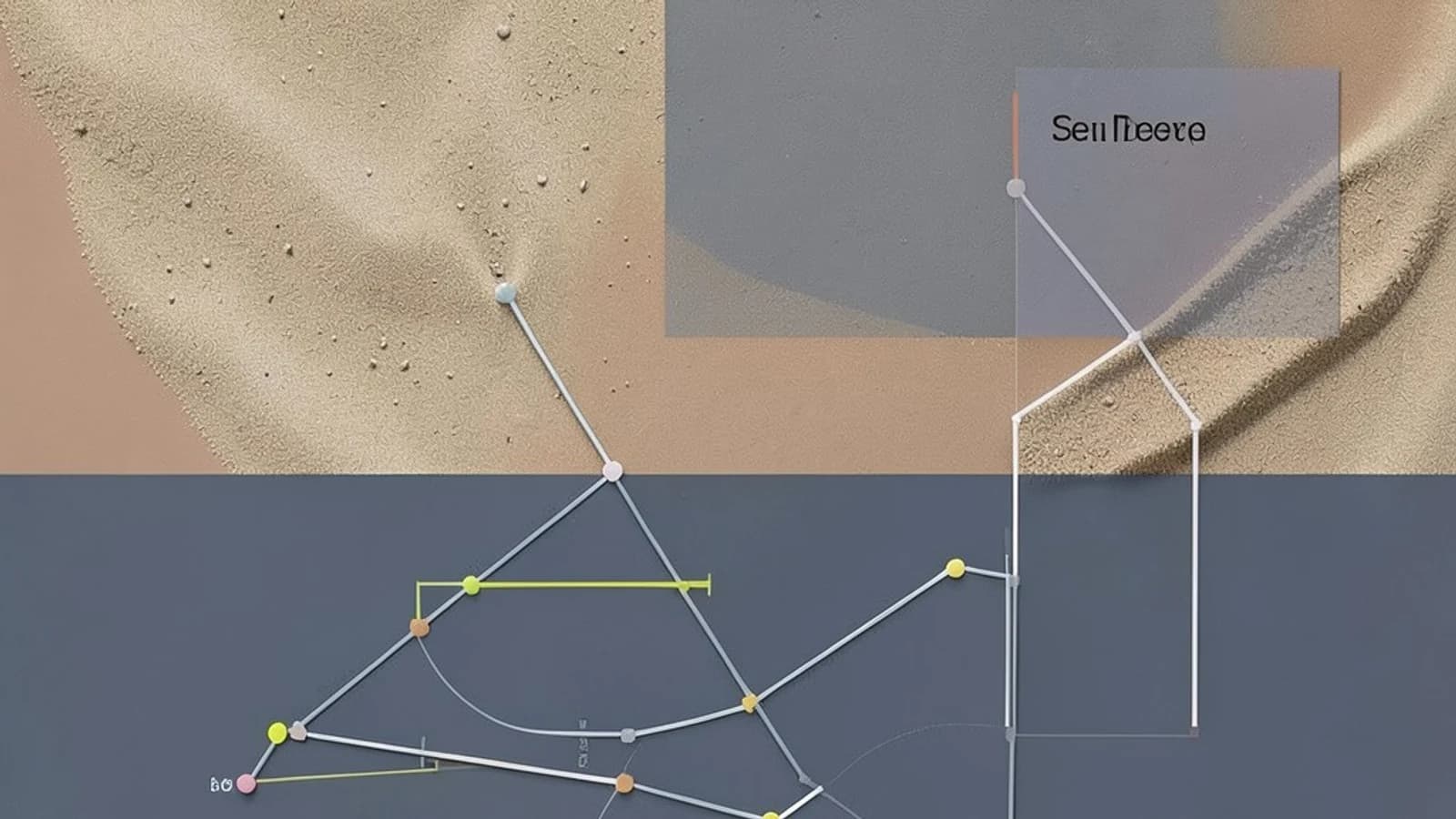
When building complex 3D visualizations—such as dynamic heatmaps, procedural terrain, or wind-flow simulations—the primary performance bottleneck is rarely the GPU's ability to render triangles. Instead, it is the overhead of transferring data from the CPU to the GPU. If you are updating vertex positions or colors every frame using high-level objects, you will likely encounter frame drops due to memory reallocation and inefficient data bus usage.
The solution is BufferGeometry. By storing vertex data in typed arrays (like Float32Array), Three.js can send data to the GPU in a format it understands natively, bypassing the need for the engine to translate JavaScript objects into binary buffers during every render call.
Leveraging BufferAttributes for Custom Data
While position and normal are standard attributes, BufferGeometry allows you to define custom attributes. A BufferAttribute is essentially a wrapper around a typed array that tells Three.js how many components (e.g., x, y, z) make up a single vertex.
For example, if you want to pass a "temperature" value to each vertex to drive a color gradient in a custom shader, you can create a custom attribute. This keeps your data packed and ensures that the vertex shader receives the value as a varying attribute, allowing the GPU to interpolate the value across the face of the triangle.
Improving Cache Locality with InterleavedBuffers
By default, BufferGeometry uses separate arrays for positions, normals, and colors. While simple, this can lead to poor cache performance because the GPU must fetch data from multiple disparate memory locations for a single vertex.
An InterleavedBuffer solves this by storing all attributes for a single vertex contiguously in one array. The structure looks like this: [pos.x, pos.y, pos.z, color.r, color.g, color.b, pos.x, pos.y, pos.z...]. You then define the stride (the total size of one vertex block) and the offset (where a specific attribute starts within that block). This reduces memory fragmentation and can significantly improve rendering speed for high-poly meshes.
Worked Example: Dynamic Vertex Displacement
The following example demonstrates how to set up a BufferGeometry with a custom attribute and update it at runtime. This assumes you are using Three.js r150+.
// 1. Initialize Geometry
const geometry = new THREE.BufferGeometry();
const vertexCount = 1000;

// Position attribute (Standard)
const positions = new Float32Array(vertexCount * 3);
for (let i = 0; i < vertexCount * 3; i++) {
  positions[i] = (Math.random() - 0.5) * 10;
}
geometry.setAttribute('position', new THREE.BufferAttribute(positions, 3));

// Custom 'offset' attribute (Custom)
const offsets = new Float32Array(vertexCount);
geometry.setAttribute('aOffset', new THREE.BufferAttribute(offsets, 1));

const mesh = new THREE.Mesh(geometry, myCustomShaderMaterial);
scene.add(mesh);

// 2. Update Loop (Run in requestAnimationFrame)
function updateGeometry(time) {
  const offsetArray = geometry.getAttribute('aOffset').array;

  for (let i = 0; i < vertexCount; i++) {
    // Update the custom attribute based on time
    offsetArray[i] = Math.sin(time + i * 0.1);
  }

  // CRITICAL: Tell Three.js the buffer has changed
  geometry.getAttribute('aOffset').needsUpdate = true;
}
Implementation Details
- Permissions: This code runs in the browser main thread (WebGL context).
- Placeholders:
myCustomShaderMaterialmust be aShaderMaterialthat definesattribute float aOffset;in the vertex shader. - Expected Result: The GPU will upload the modified
Float32Arrayto the VRAM, and the shader will use the updated values to displace vertices.
Trade-offs and Memory Management
While BufferGeometry is efficient, it introduces two primary risks: CPU-to-GPU bottlenecks and memory leaks.
The Update Bottleneck: Setting needsUpdate = true triggers a full upload of that attribute's buffer to the GPU. If you are updating a mesh with millions of vertices every frame, the bus transfer will become the primary lag source. For extremely large datasets, consider using Compute Shaders (via WebGPU) or Data Textures to move the logic entirely to the GPU.
Manual Disposal: Unlike standard JavaScript objects, GPU buffers are not automatically garbage collected by the JS engine. To prevent memory leaks, you must explicitly call geometry.dispose() and material.dispose() when removing the mesh from the scene.
Verification Checklist
To ensure your implementation is performing as expected, perform these checks:
- Visual Check: Modify a single value in the typed array and set
needsUpdate = true. If the mesh does not change, the attribute is not correctly linked to the shader. - Memory Profile: Open Chrome DevTools > Memory. Compare the heap snapshot of a
BufferGeometryimplementation against a legacyGeometryobject (if using older versions) to verify the reduced object overhead. - Stride Validation: If using
InterleavedBuffer, verify that your stride equals(number of attributes * components per attribute) * bytes per component. An incorrect stride will result in "spiky" or distorted geometry.
 threejs
0 replies
A thoughtful contribution can make all the difference. Be the first to share one.