Mastering pfSense Multi‑WAN: Failover, Load Balancing, and What to Watch
Configure a robust pfSense gateway group for ISP failover and load balancing. Learn how to set up tiered WANs, monitor health, route traffic, and avoid common pitfalls.
22 May 2026, 16:08 UTC
Problem: Keeping the Internet Up When a WAN Goes Down
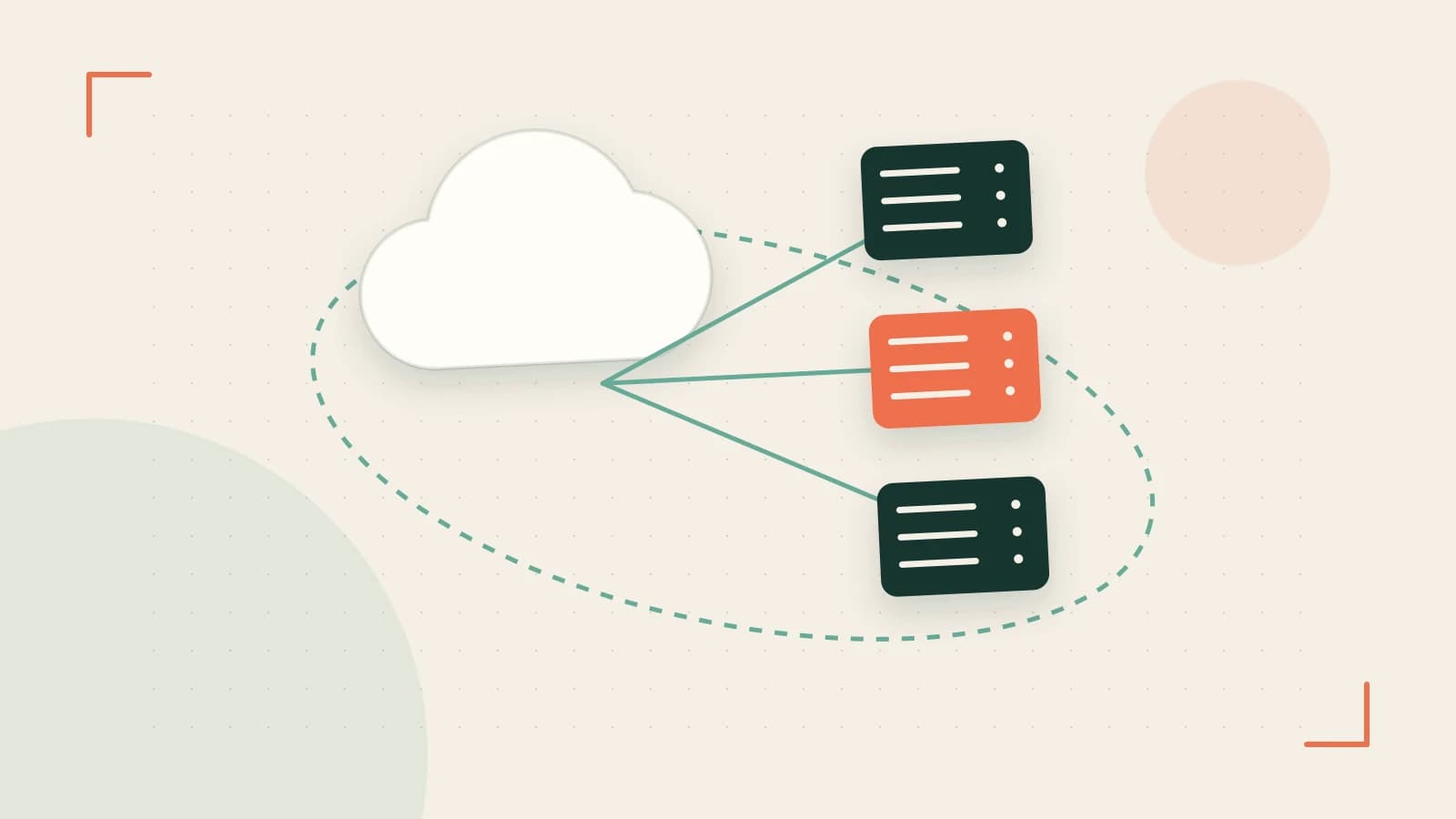
Most small‑to‑medium networks rely on a single ISP. A cable cut, fiber outage, or even a routing glitch can bring the entire LAN to a halt. pfSense offers a built‑in solution called Gateway Groups that lets you combine multiple WAN interfaces into a single logical gateway. The group can be tuned to use one link as primary, another as backup, or even split traffic across both. The challenge is configuring the group correctly, ensuring health checks work, and avoiding asymmetric routing or stale connections.
Thesis: Use Gateway Groups with Careful Monitoring and State Management for Reliable Failover
When you set up a Gateway Group, you gain automatic failover, but you also introduce new variables: the health‑check algorithm, the timing of state killing, and the way traffic is routed when the primary link drops. Understanding these knobs lets you build a resilient network that behaves predictably under failure.
1. Build the Gateway Group
Assume two WAN interfaces:
WAN1– Cable, 1 Gbps, primaryWAN2– Fiber, 500 Mbps, backup
Each interface must have a static or DHCP‑assigned gateway. In the GUI, go to System > Routing > Gateways and add both. Then create a group:
- Navigate to System > Routing > Gateway Groups.
- Click Add.
- Give it a name, e.g.,
GWG_FAILOVER. - Set Tier 1 to
WAN1and Tier 2 toWAN2.- Tier order determines priority; lower numbers are higher priority.
- Choose a Trigger Level such as
Member DownorHigh Latency(default 200 ms). This tells pfSense when to switch tiers. - Save.
In the Gateway Groups table, you’ll see the status of each tier and the group’s current default gateway.
2. Configure Monitoring with dpinger
pfSense uses dpinger to ping a target IP on each gateway. By default, it pings the gateway’s own address (e.g., 192.168.100.1 for WAN1). You can change this to a more reliable host such as 8.8.8.8 or an ISP‑provided anycast IP.
- In System > Routing > Gateways, edit each gateway.
- Under Monitor IP, enter a stable IP that stays reachable as long as the link is operational.
- Adjust Latency Threshold and Loss Threshold if you want stricter or more tolerant checks.
After saving, Status > Gateways shows a live graph of latency and packet loss. Look for the ALARM and CLEAR entries in Status > System Logs > Gateways to confirm dpinger is firing as expected.
3. Route LAN Traffic to the Group
Create a firewall rule that forces all LAN traffic to use the Gateway Group:
- Navigate to Firewall > Rules > LAN.
- Click Add at the top.
- Set Action to
Pass, Interface toLAN, and Source toLAN net. - Under Advanced Options > Gateway, select
GWG_FAILOVER. - Save and apply changes.
With this rule, every new connection from a LAN host is bound to the current default gateway of the group. If WAN1 fails health checks, the rule automatically switches to WAN2 for new sessions.
4. Handle State Persistence and Asymmetric Routing
Open‑stateful firewalls like pfSense keep a table of active connections. When a gateway fails, existing connections may continue to use the old path until the state expires. This can cause dropped packets or broken VoIP calls.
- Navigate to System > Advanced > Miscellaneous.
- Enable State Killing on Gateway Failure. This forces all states tied to the failed gateway to be dropped immediately, forcing a new connection over the healthy link.
- Beware: applications that cannot reconnect gracefully (legacy VoIP, some VPNs) may experience brief outages.
In asymmetric routing scenarios, return traffic may arrive via a different WAN than the outbound. This can happen if the remote peer sees multiple source IPs or if the ISP has internal routing that prefers a different path. To mitigate, consider:
- Using
Bypass firewall rules for traffic on the same interface(found in Firewall > Rules > LAN > Advanced) only when you’re sure return traffic will follow the same path. - Implementing NPTv6 or 1:1 NAT for IPv6 to preserve a single source address per connection.
5. IPv6 Multi‑WAN Considerations
Each WAN must provide a valid IPv6 gateway (via DHCP6 or SLAAC). The gateway’s monitor IP should be a reachable IPv6 address, preferably within the delegated prefix. When both ISPs delegate prefixes, your LAN will receive addresses from two distinct prefixes. Configure your DHCPv6 server or use ULA + NPTv6 to keep internal devices stable.
6. Load Balancing vs. Failover: The Trade‑Off
Gateway Groups are per‑connection routers. A single large download stays on the same WAN; new connections may use the other link. If you need true active‑active load balancing (splitting a single flow across both links), pfSense alone cannot do this. Workarounds include:
- Creating multiple Gateway Groups with different Tier 1 assignments and using policy routing to direct specific traffic types to each group.
- Using bonding services like SpeedFusion, ZeroTier, or a cloud VPN to aggregate bandwidth.
Note that active‑active setups can lead to asymmetric routing and more complex state handling.
7. Practical Test: Simulate a WAN Failure
To verify the configuration:
- In the lab, disconnect
WAN1or block its monitor IP with a firewall rule. - Observe Status > Gateways – the graph should show a spike in latency/loss and the group should switch to
WAN2. - Check Status > System Logs > Gateways for an
ALARMentry markingWAN1down and aCLEARentry when it comes back. - From a LAN client, run
traceroute 8.8.8.8before and after the failure to confirm the source IP changes to theWAN2IP.
8. Upgrade Considerations: 2.7.x vs. 3.0
The 3.0 branch (FreeBSD 14) introduces updated dpinger logic and IPv6 PD handling. After upgrading, re‑validate:
- Check that monitor IPs are still reachable and that thresholds work as expected.
- Verify that IPv6 prefixes are correctly announced to LAN clients.
- Review the System > Advanced > Miscellaneous settings; the default for state killing may differ between branches.
Actionable Closing
By grouping WANs, configuring dpinger, routing LAN traffic to the group, and enabling state killing, you create a failover path that is transparent to users. Remember:
- Choose monitor IPs that reflect true internet reachability.
- Test failover in a controlled environment before deploying to production.
- Document the gateway group setup and any policy routing rules for future maintenance.
- If you need true load balancing, consider a bonding solution or multiple policy routes.
With these steps, your pfSense firewall will keep the LAN online even when one ISP goes down, and you’ll know exactly how the system behaves under stress.
 pfsense
0 replies
A thoughtful contribution can make all the difference. Be the first to share one.