Managing Service Continuity with pfSense Virtual IPs and CARP
Learn how to use pfSense Virtual IPs and CARP to eliminate single points of failure and maintain service continuity during hardware outages.
19 Nov 2025, 07:36 UTC
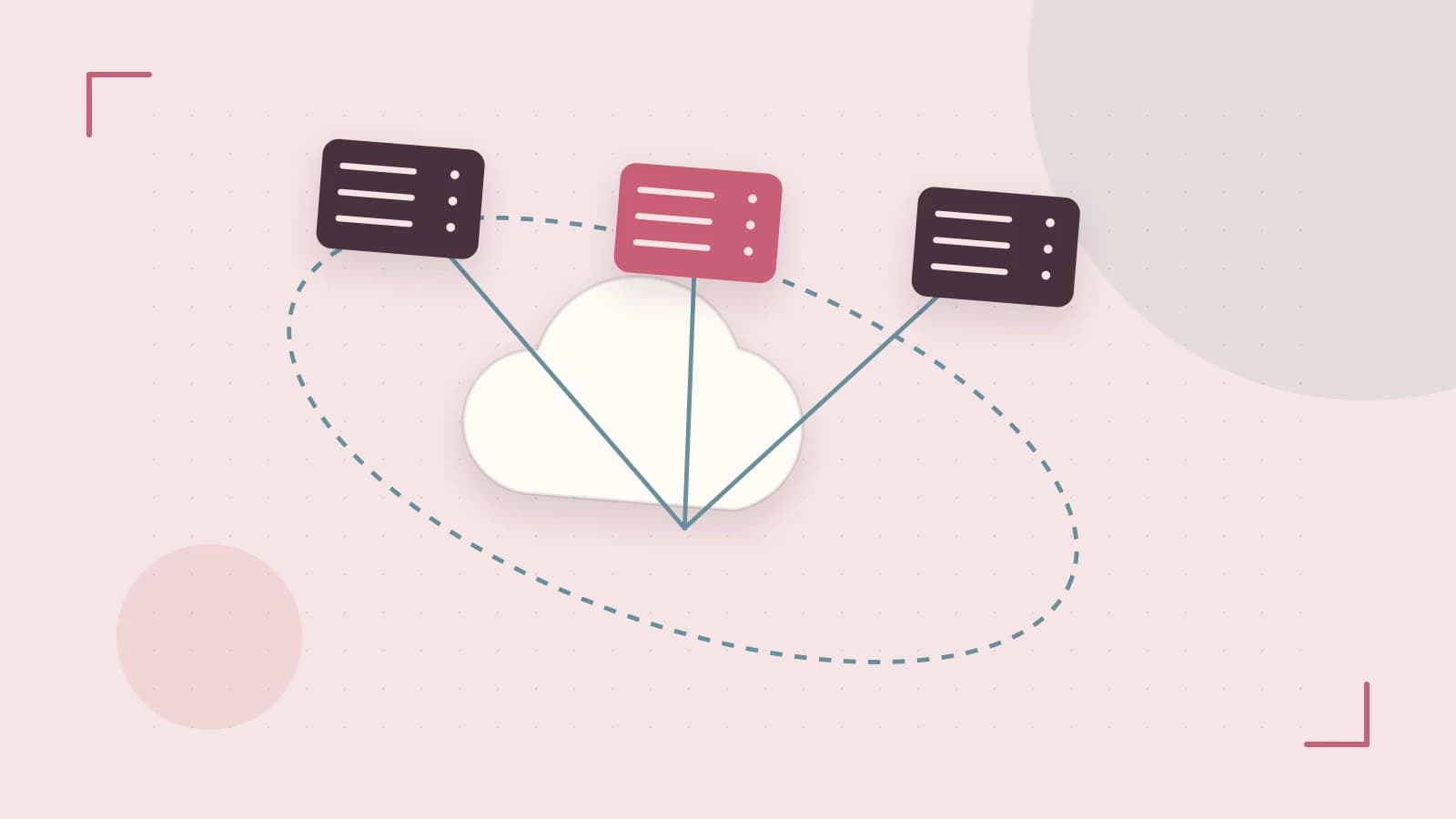
The Problem: The Single Point of Failure
In a standard firewall setup, your network relies on a single physical IP address assigned to a WAN or LAN interface. If that hardware fails or requires a reboot for updates, every service relying on that IP—DNS, VPNs, or internal gateways—goes offline. Switching to a backup firewall manually by changing IP addresses on clients or updating DNS records is slow and prone to error.
The solution is to decouple the service identity from the physical hardware using Virtual IPs (VIPs). By using a shared address that can migrate between nodes, you ensure that your network traffic continues to flow even when a specific piece of hardware disappears from the rack.
Understanding VIP Types: Aliases vs. CARP
pfSense provides different types of Virtual IPs depending on whether you need simple multi-homing or true high availability (HA). It is critical to choose the right one, as they behave differently under the hood.
IP Aliases
An IP Alias allows a single physical interface to respond to multiple IP addresses. This is useful when you have a block of public IPs from an ISP and want to host different services (like a mail server and a web server) on separate IPs without adding more physical network cards. However, IP Aliases provide no redundancy; if the node fails, the alias fails with it.
CARP (Common Address Redundancy Protocol)
CARP is the engine behind pfSense High Availability. It creates a shared virtual address that is monitored by a cluster of nodes. One node is designated as the "Master" and handles all traffic for that VIP. The other nodes act as "Backups," listening for heartbeat signals. If the Master stops sending heartbeats, a Backup promotes itself to Master and takes over the VIP instantly.
Implementing a Failover Pair
To implement a CARP-based failover, you need two pfSense nodes with identical configurations (typically synced via XMLRPC sync). Each node needs its own unique physical IP on the interface, and then they share a third Virtual IP.
Configuration Example
Assume a LAN subnet of 192.168.1.0/24. You want the gateway for your clients to be 192.168.1.1, regardless of which firewall is active.
| Setting | Node A (Master) | Node B (Backup) |
|---|---|---|
| Physical Interface IP | 192.168.1.2/24 | 192.168.1.3/24 |
| Virtual IP (CARP) | 192.168.1.1 | 192.168.1.1 |
| VHID (Virtual Host ID) | 1 (Must match) | 1 (Must match) |
| CARP Password | Shared Secret | Shared Secret |
| Advertising Frequency | 1s | 1s |
Execution Steps:
- Navigate to
Firewall > Virtual IPson both nodes. - Add a new VIP, select CARP as the type, and assign it to the LAN interface.
- Enter the shared address (
192.168.1.1) and a unique VHID. - Configure your DHCP server to hand out
192.168.1.1as the default gateway to all clients.
Risks and Limitations
The most significant risk in a CARP environment is the "Split-Brain" scenario. This occurs when the heartbeat communication between nodes is interrupted (e.g., a failed switch or cable), but both nodes remain powered on. Both nodes will assume the Master has failed and attempt to claim the Virtual IP simultaneously. This causes intermittent connectivity and MAC address flapping on the network switch.
To mitigate this, ensure your CARP heartbeat traffic is prioritized and, if possible, use a dedicated physical interface or a tagged VLAN specifically for synchronization and heartbeats to isolate this traffic from general data flow.
Verifying the Failover
To confirm the setup is working without waiting for a real crash, perform a manual failover test:
- From a client machine, run a continuous ping to the VIP:
ping 192.168.1.1. - Log into the Master node and navigate to
Status > CARPto confirm it is currently the Master. - Force a failover by either shutting down the Master node or disabling the interface.
- Observe the ping results. You should see a brief pause (usually 1-3 dropped packets) before the Backup node takes over and pings resume.
- Check
Status > CARPon the second node to verify it has transitioned to Master.
Rollback: To revert to a single-node setup, delete the Virtual IP from Firewall > Virtual IPs and update your DHCP server to point to the physical IP of the remaining node.
 pfsense
0 replies
A thoughtful contribution can make all the difference. Be the first to share one.