Isolating Browser State with Firefox Multi-Account Containers
Stop juggling browser profiles. Learn how to use Firefox Multi-Account Containers to isolate cookies and storage for multiple accounts and improved privacy.
22 Sept 2025, 13:37 UTC
The Problem: Session Leakage and Tracking
Managing multiple accounts for the same service—such as a corporate Gmail and a personal Gmail—usually requires either logging out and back in repeatedly or maintaining a separate browser profile entirely. Beyond convenience, the shared state of a standard browser session allows websites to track users across different contexts via cookies and local storage, creating a unified digital footprint that is difficult to scrub.
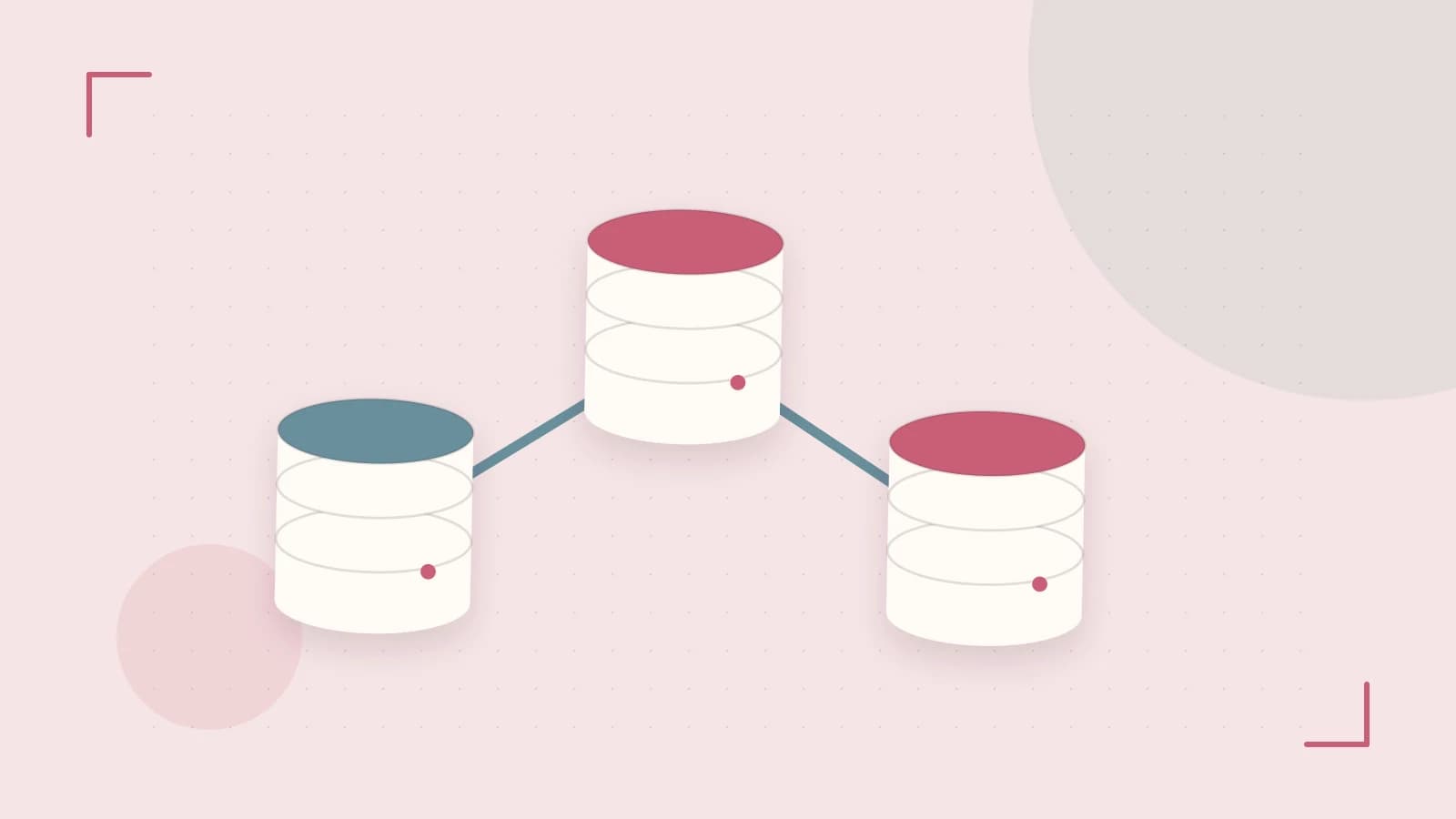
The takeaway is that Firefox Multi-Account Containers allow you to partition your browser's storage into isolated silos. This means you can stay logged into multiple accounts on the same site simultaneously without them seeing each other's data.
How Container Isolation Works
Standard browser tabs share a single "cookie jar." If you log into a site in Tab A, Tab B is automatically authenticated because it accesses the same storage. Multi-Account Containers replace this single jar with multiple, isolated buckets.
Each container isolates the following site data:
- Cookies: Session IDs and authentication tokens.
- Local Storage: Data stored locally by the web app.
- IndexedDB: Client-side structured databases.
- Cache: Temporary files stored for performance.
Because these are separated at the browser level, a site loaded in a "Work" container cannot access the cookies stored in a "Personal" container, effectively preventing cross-site tracking and session bleed.
Practical Setup and Workflow
To implement containers, ensure you are using a recent version of Firefox (v100+). While the core logic is built-in, the Firefox Multi-Account Containers extension is the primary interface for managing these silos.
- Install the Multi-Account Containers extension from the Firefox Add-ons store.
- Click the Containers icon in the toolbar and select Edit Containers.
- Create a new container (e.g., "Banking" or "Testing") and assign it a unique color for visual identification.
- To open a site in a specific container, click the Containers icon and select the desired context before entering the URL.
Example: Managing Production and Staging Environments
For developers or QA engineers, testing a site across different user roles (e.g., Admin vs. End-User) typically requires an Incognito window, which clears all data upon closing. Using containers is more efficient because it persists the session.
| Container Name | Assigned Domain | Purpose |
|---|---|---|
| Prod-Admin | app.example.com | Production environment administrative access |
| Prod-User | app.example.com | Production environment standard user testing |
| Staging | staging.example.com | Development/QA environment |
By assigning app.example.com to always open in the "Prod-Admin" container, you eliminate the risk of accidentally performing a destructive action in production while thinking you are in staging.
Trade-offs and Technical Limitations
Isolation comes with a few engineering costs. First, memory usage increases slightly because the browser must track multiple distinct storage states. While negligible for a few containers, dozens of active containers can impact RAM consumption.
Second, cross-container functionality is broken by design. If a web application relies on a single-sign-on (SSO) provider that expects a shared cookie across different domains, the authentication flow may fail if the SSO provider is in one container and the target app is in another.
Verifying Isolation
To confirm that your containers are actually isolating data, you can use the built-in Developer Tools:
- Open a tab in the "Work" container and navigate to a site.
- Open a second tab in the "Personal" container and navigate to the same site.
- Right-click anywhere and select Inspect > Storage tab.
- Compare the Cookies section. You should see that the session tokens in the Work container are entirely different from those in the Personal container.
Rollback and Cleanup
If a container causes a site to malfunction, you can revert the site to a standard tab by clicking the Containers icon and selecting Always open in no container. To completely wipe the data for a specific container, go to Settings > Privacy & Security > Cookies and Site Data > Manage Data and filter by the specific site entries associated with that container's activity.
 firefox
0 replies
A thoughtful contribution can make all the difference. Be the first to share one.