How WooCommerce Action Scheduler Manages Background Jobs: An Architecture Note
WooCommerce Action Scheduler replaces WP-Cron for background jobs using a custom queue table. Learn its data boundaries, operational checks, and failure modes.
22 Aug 2026, 00:20 UTC
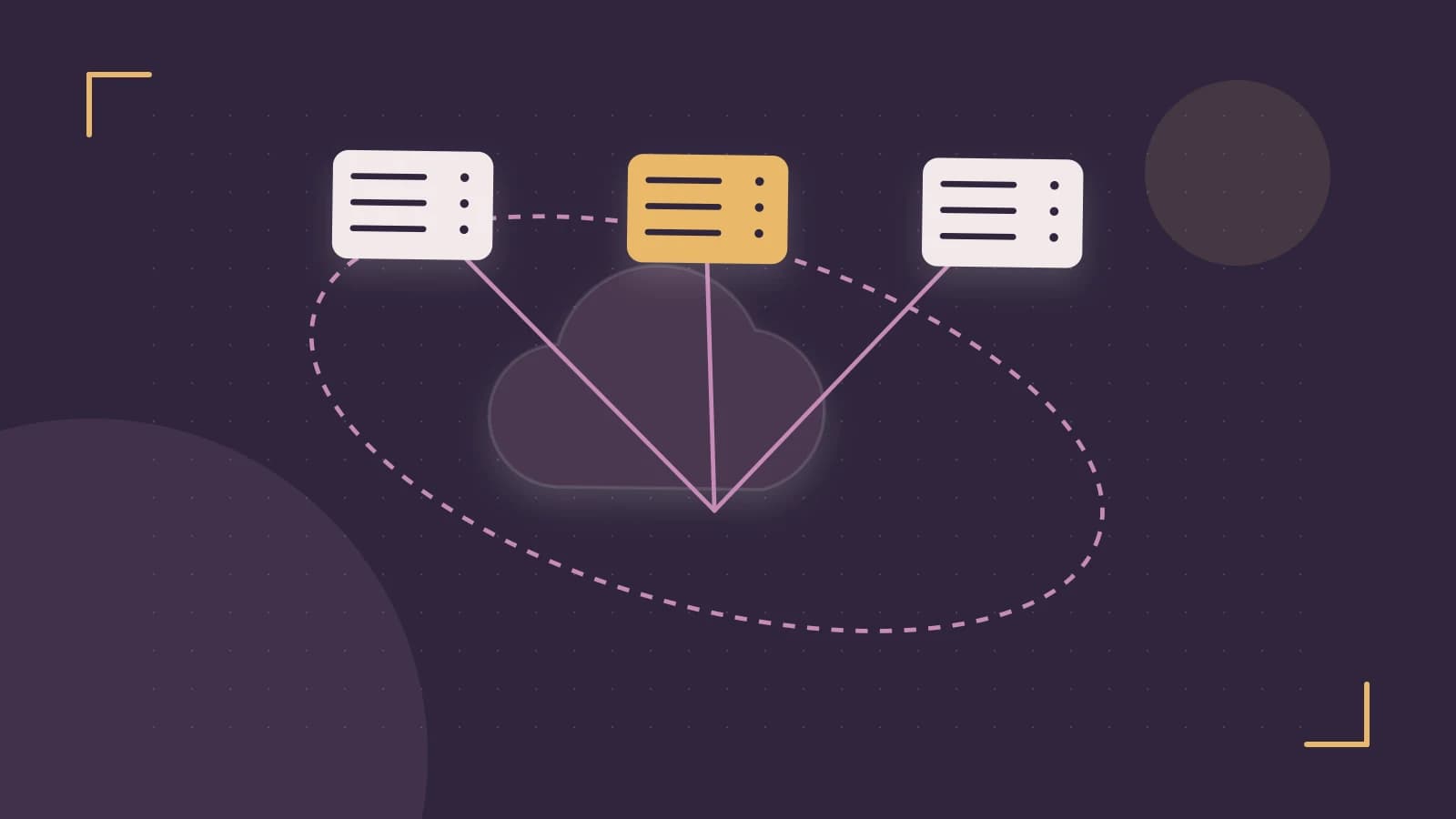
The problem: background work inside the request cycle
When a WooCommerce store sends a receipt, updates inventory after a refund, or retries a failed payment webhook, that work should not happen inside the customer's HTTP request. Doing so adds latency and risks timeouts. WordPress's native WP-Cron is not a real queue—it fires opportunistically on page loads and can skip or duplicate tasks under load. WooCommerce replaces this pattern for its own background work with Action Scheduler, a queue backed by custom database tables. The useful takeaway is that Action Scheduler is a stateful subsystem with its own runner lifecycle, data boundaries, and failure modes; treating it as a simple cron replacement leads to stuck actions and database bloat.
Requirements for a WooCommerce background processor
Any background job system in WooCommerce must satisfy four architectural requirements:
- Asynchronous execution: tasks must run outside the request that created them.
- Duplicate prevention: concurrent runners must not claim and execute the same action twice.
- Durability: scheduled work must survive process restarts and server reboots.
- Observability: operators must be able to distinguish pending, in-progress, failed, and completed work.
WP-Cron alone fails the first and second requirements because it is not a queue and has no claim mechanism. Action Scheduler was designed to close that gap.
The smallest suitable design: a claim-based queue
Action Scheduler introduces a small set of custom tables—commonly prefixed wp_actionscheduler_ or wc_actionscheduler_ depending on the installation—that store action metadata, claim records, logs, and groups. Instead of a single cron array, actions are rows in a queue table.
A runner process polls the table for due actions, then claims a batch by writing a claim identifier and timestamp. Because the claim is persisted, a second runner will skip those rows. After execution, the runner marks each action as completed or failed. This claim-then-execute pattern is the core mechanism that prevents duplicate processing in concurrent environments.
There are two common trigger models:
- Default loopback HTTP request: Action Scheduler schedules a WP-Cron event that asks the server to call itself over HTTP and process the queue. This works out of the box but adds HTTP overhead and can fail on hosts that block loopback requests.
- WP-CLI runner: an external process invokes the scheduler directly, bypassing HTTP entirely. This is the preferred model for high-volume or restricted hosting environments.
Concrete example: invoking the runner via WP-CLI
Run the following from the WordPress site root as the web server user (for example, www-data or nginx):
wp action-scheduler runThis command processes actions that are due. It requires WP-CLI to be installed and the WooCommerce Action Scheduler commands to be registered. Because this mutates state, there is no rollback for actions that have already completed; to pause processing, remove the trigger rather than attempting to revert the database.
Trust and data boundaries
WooCommerce stores orders and products in wp_posts and wp_postmeta. Action Scheduler deliberately keeps its metadata in separate tables. This separation reduces lock contention on the core business entities that handle checkout traffic. The runner needs write access to the scheduler tables, but it does not need to modify order or product tables directly.
The log table, wp_actionscheduler_logs, is the main boundary risk. Every action execution can generate log entries, and verbose logging can cause this table to grow faster than the actions table itself. Retention policy is therefore an architectural decision, not an afterthought.
Operational checks
Two signals tell you whether the queue is healthy: the count of pending actions and the count of failed actions.
Dashboard check
In the WordPress admin, go to WooCommerce > Status > Scheduled Actions. During normal traffic, the pending count should be small and transient. A failed count that climbs, or a pending count that never drains, indicates a runner problem.
Database check
Run this read-only query in a MySQL or MariaDB client. Replace wp_ with your actual table prefix:
SELECT status, COUNT(*) AS total
FROM wp_actionscheduler_actions
GROUP BY status;
Expected result: most rows should be completed. A large number of pending rows suggests the runner is not firing often enough or is crashing. A growing number of failed rows suggests task-level errors that need investigation.
Failure modes and orphaned claims
The most common failure mode is an orphaned claim: a runner process crashes after claiming an action but before marking it complete. The action remains in a pending or in-progress state with a stale claim timestamp. Action Scheduler includes a cleanup mechanism for these orphaned claims, but very long-running actions may still appear stuck for a period.
A second failure mode is loopback timeout. If the default HTTP-based trigger is used on a host that restricts internal requests, the queue may never drain. The third is log bloat, where the logs table grows large enough to affect database performance.
Conditions that would change the design
| Condition | Design change |
|---|---|
| Host blocks loopback HTTP requests | Disable the WP-Cron trigger and schedule wp action-scheduler run via system cron every minute. |
| Action volume exceeds what one runner can drain per minute | Move to an external runner or a process manager, or split work into groups with separate runners. |
| Log table size threatens database performance | Implement a retention job or reduce log verbosity. |
| Multi-site or distributed processing is required | Evaluate whether a single-site queue is sufficient or an external queue service is needed. |
Limitations and verification
Action Scheduler is bundled with WooCommerce, but exact table names, cleanup intervals, and WP-CLI command availability can vary by version. Before relying on any specific behavior, verify the tables exist in your database and confirm that wp action-scheduler run is available in your WP-CLI installation.
A practical verification step is to enable a WP-CLI runner on a staging site and watch the Scheduled Actions dashboard for five to ten minutes. Pending actions should trend toward zero during normal traffic. If they do not, inspect the system cron logs and WP-CLI output for errors before promoting the change to production.
 woocommerce
0 replies
A thoughtful contribution can make all the difference. Be the first to share one.