Glitch Real-Time Editing: When Live Preview Lags and How to Check It
Live preview stalls during Glitch collaboration; here's how to diagnose desync and keep projects moving.
04 Sept 2026, 06:19 UTC
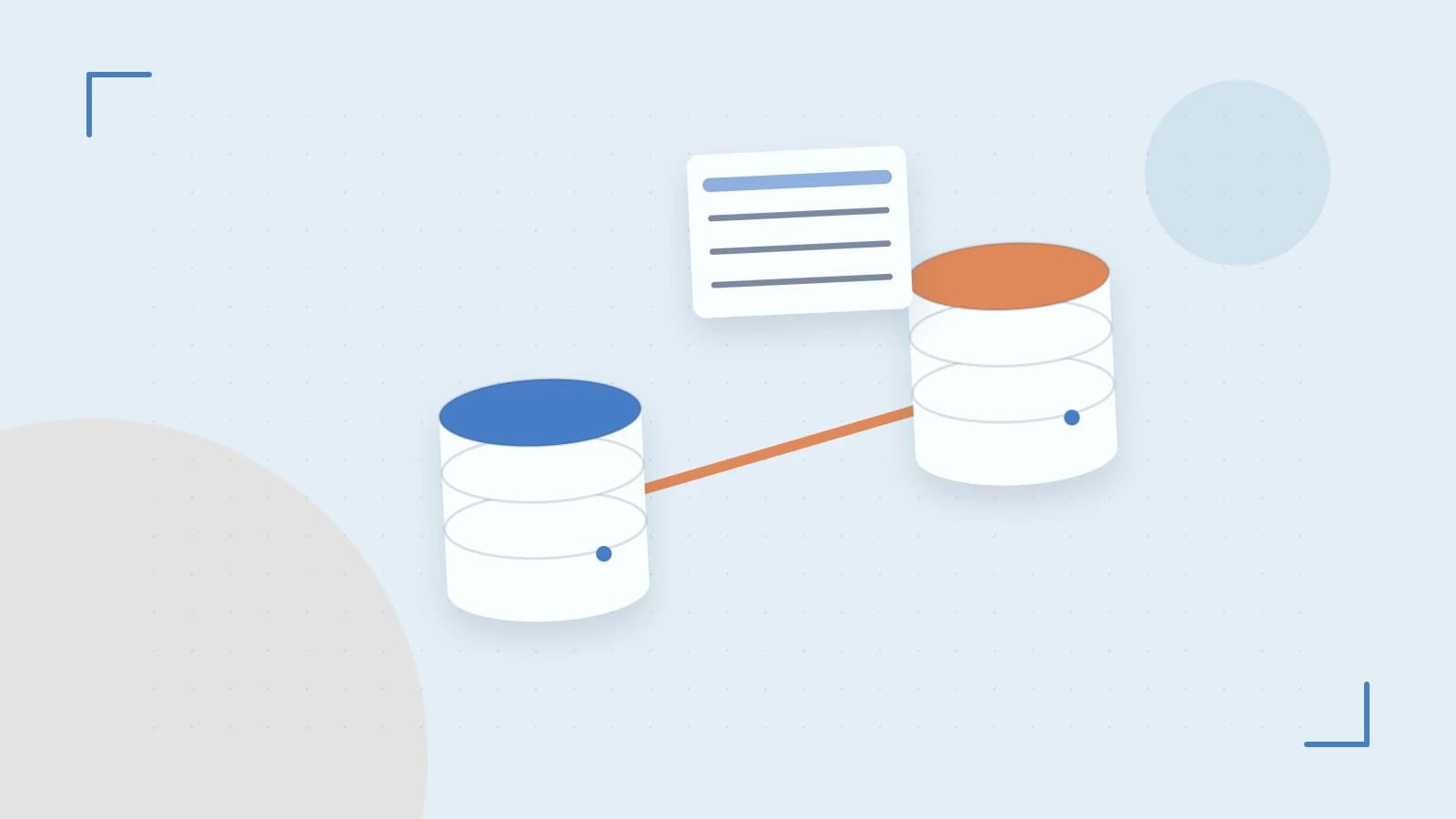
The Problem: Live Preview Desync During Collaboration
Youre in the middle of a Glitch session with a teammate and the live preview hasnt updated. The editor shows fresh code but the running app still displays the old version. This disconnect can mask broken builds or lost state and is a common experience in browser-based IDEs.
Useful takeaway: Before assuming the worst check three things in under a minute – the project timestamp, the timeline panel, and a hard reload – to confirm whether the desync is client-side connectivity-related or a Glitch-level behavior you can work around.
How Glitch's Real-Time Editing Actually Works
Glitch runs a browser-based code editor backed by a WebSocket connection between each collaborator's client and Glitch's servers. When you save a file the change is broadcast instantly and the built-in hosting service triggers a redeployment. The key thing to know is that collaboration is file-level: the server does not attempt to merge character-by-character changes; it simply applies the most recent version of the file. That means if two people edit the same line the last save wins and there are no conflict markers or three-way merges.
File-Level Not Character-Level
Unlike character-level operational transformation systems used by Google Docs or CodePen collaboration mode Glitch treats each file as a single unit. When Developer A saves a function and Developer B saves a different function moments later both changes are applied sequentially. If they target the exact same line the second save overwrites the first. This design keeps the server simple but requires collaborators to be mindful of overlapping edits.
Concrete Example: Diagnosing Preview Desync
Imagine you’re building a small Express API on Glitch. Your partner opens the same project and edits a route handler to add a new query parameter. After they save the preview still shows the old response format. Here is how to check what is happening:
- Check the save timestamp. Glitch displays a timestamp next to the Save button. If the timestamp is newer than the preview’s last refresh the change has been deployed but may be cached in the browser.
- Open the timeline panel. From the project menu access the timeline. Glitch records each save as a discrete version; if your edit appears the deployment occurred successfully.
- Perform a hard reload. In the preview window press
Cmd+Shift+R(macOS) orCtrl+Shift+R(Windows). This clears the browser’s JavaScript and CSS cache and forces the latest deployed version to load.
If the preview updates after the hard reload the issue was client-side caching, not a Glitch problem. If it stays stale the WebSocket broadcast may not have reached your client – verify your internet connection or try the project in an incognito window.
// Example route before the edit
app.get('/status', (req, res) => {
  res.send('online');
});

// Example route after the edit (saved by partner)
app.get('/status', (req, res) => {
  res.send('online v2');
});
Trade‑Offs and Limitations
Glitch’s strength is zero‑setup collaboration, but it comes with constraints worth weighing. Browser-based editing struggles with large codebases; you’ll notice typing lag when files exceed a few thousand lines. Real-time collaboration requires constant internet access – offline work is not possible. Version control is abstracted; you can revert from the timeline but advanced Git operations (rebasing, cherry‑picking) are not available through the interface. And because edits are file-level, complex concurrent changes to the same function can overwrite each other silently – the same merge‑conflict scenario many teams encounter.
Actionable Takeaways
- Establish a coordination habit. Use Glitch’s built-in comments or a shared Slack/Discord channel to announce major file edits before saving.
- Divide responsibility by file or directory. When possible let one developer work on styles and another on API logic to reduce overlap.
- Check the timeline immediately after any unexpected preview behavior – it’s the fastest diagnostic for whether a deployment happened.
- For critical changes fork first. Create a copy as a safety net then merge back later using your preferred Git workflow.
If your team needs robust merge capabilities, supplement Glitch with a local development environment where Git’s full toolset is available. But for rapid prototyping, hackathons or distributed pair‑programming, understanding these limits lets you use Glitch without losing work.
 glitch
0 replies
A thoughtful contribution can make all the difference. Be the first to share one.