Git Worktrees: Parallel Development Without the Context Switch
Git worktrees let you check out multiple branches into separate directories sharing one .git folder. Run a long build in one worktree while fixing a bug in another—no stashing, no duplicate clones. Here's how to set them up, a worked example, and the trade-offs to watch for.
17 Nov 2025, 07:16 UTC
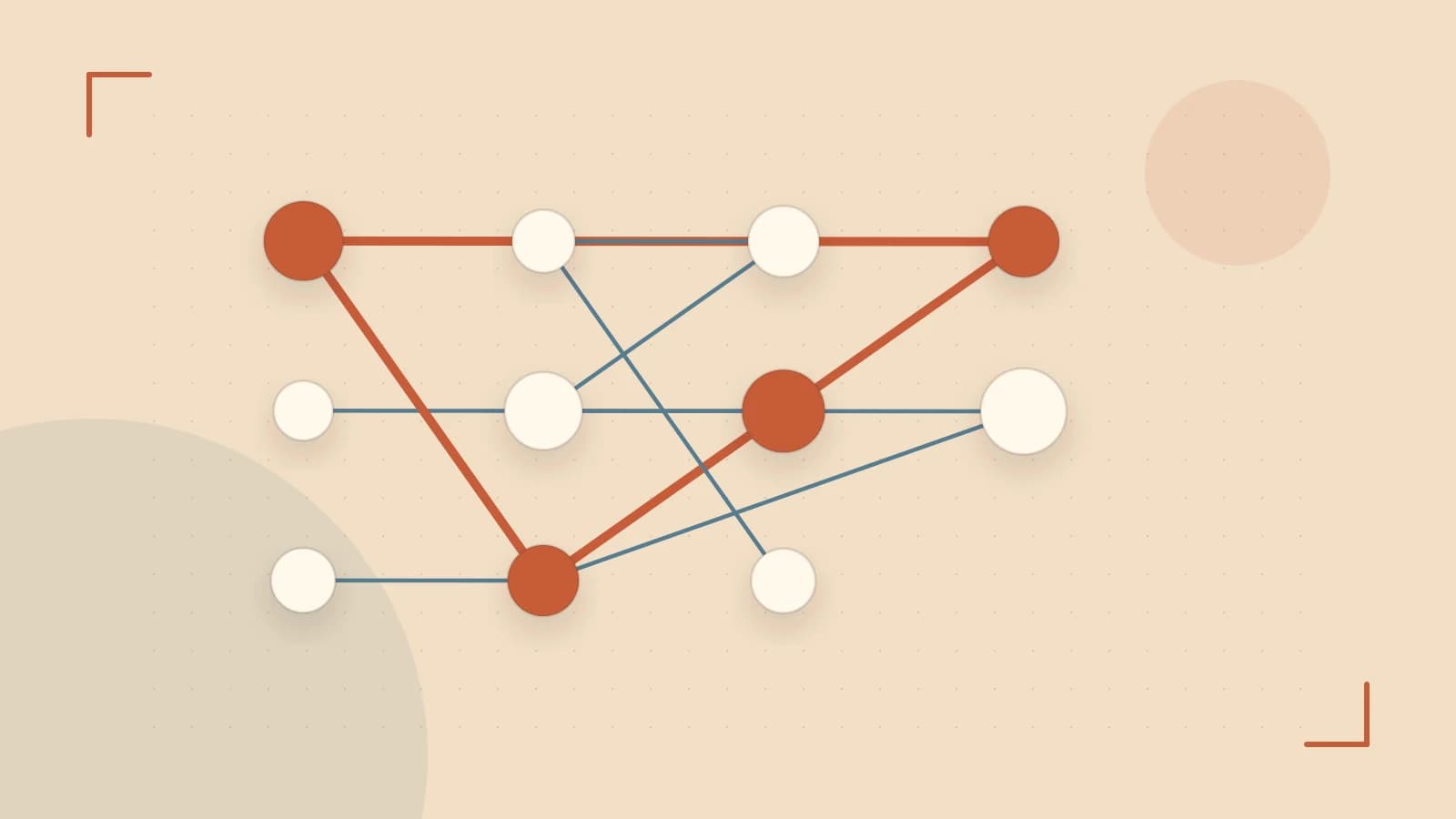
The problem: context switching kills momentum
You're midway through a refactor when an urgent bug report lands. The usual dance begins: git stash, checkout the release branch, fix the bug, commit, push, then git stash pop and hope the rebase doesn't explode. If the build takes ten minutes, you're stuck waiting or juggling terminals.
Git worktrees let you check out another branch into a separate directory while keeping your current work untouched. Both directories share the same .git object database, so there's no duplicate clone, but each has its own index and working tree. You can run the long build in one worktree while editing code in another.
How worktrees differ from multiple clones
A full clone duplicates the entire history. Worktrees share objects and refs, so disk usage stays low and git fetch updates every worktree at once. The trade-off: destructive commands like git reset --hard or git branch -D affect all worktrees because they operate on shared refs. Treat the shared ref namespace as a shared resource.
Creating and managing worktrees
Run these commands from your repository root (the directory containing .git). You need write permission on the parent directory where the new worktree will live.
# Add a worktree for an existing branch
$ git worktree add ../hotfix-branch hotfix/login-issue

# Add a worktree for a new branch based on main
$ git worktree add -b feature/new-ui ../feature-ui main

# List all worktrees
$ git worktree list
The first command creates ../hotfix-branch with the hotfix/login-issue branch checked out. The second creates a new branch feature/new-ui starting at main and checks it out into ../feature-ui. git worktree list shows each worktree's path, HEAD commit, and branch name.
Worked example: fixing a bug while the test suite runs
Suppose your main worktree is at ~/project on branch refactor/auth. The test suite takes 12 minutes. You need to patch a production bug on release/2.1.
- From
~/project, run:$ git worktree add ../project-hotfix release/2.1 - Open a new terminal,
cd ../project-hotfix, make the fix, commit, and push. - Back in
~/project, the test suite continues uninterrupted. Your working tree still shows the refactor changes. - When the hotfix is merged, clean up:
$ git worktree remove ../project-hotfix
Verification: run git rev-parse HEAD in both directories. They show different commits. Run git status in each; each reports its own modified files. git worktree list shows only the main worktree after removal.
Limitations and gotchas
- Shared refs: Deleting a branch with
git branch -Din one worktree removes it everywhere. If you need isolation, use separate repositories orgit worktree add --detachfor a detached HEAD. - Lock files: Git locks the worktree entry while operations run. If a worktree directory is deleted manually without
git worktree remove, rungit worktree pruneto clean stale administrative files in.git/worktrees/. - Submodules: Submodules are checked out per worktree. Updating a submodule in one worktree does not automatically update others.
- Disk space: Each worktree adds a full working tree. For large repos with many generated artifacts, this can still be significant.
When to reach for worktrees
Use worktrees when you need true parallelism: long-running CI locally, simultaneous code review and editing, or testing multiple branches against the same build artifacts. Skip them for quick one-off switches where git stash or a temporary commit is simpler.
Next time you're about to stash, ask: "Could a worktree keep both contexts alive?" If yes, git worktree add is a single command away.
 git
git0 replies
A thoughtful contribution can make all the difference. Be the first to share one.