FireMonkey Single Codebase in RAD Studio: Rendering Trade-offs and Layout Strategy
FireMonkey promises one UI codebase for Windows, macOS, iOS, and Android by replacing native controls with a GPU-accelerated canvas. Here is how that decision shapes styling, layout, and platform-specific code.
18 Sept 2025, 17:06 UTC
The Problem: One Product, Four UI Expectations
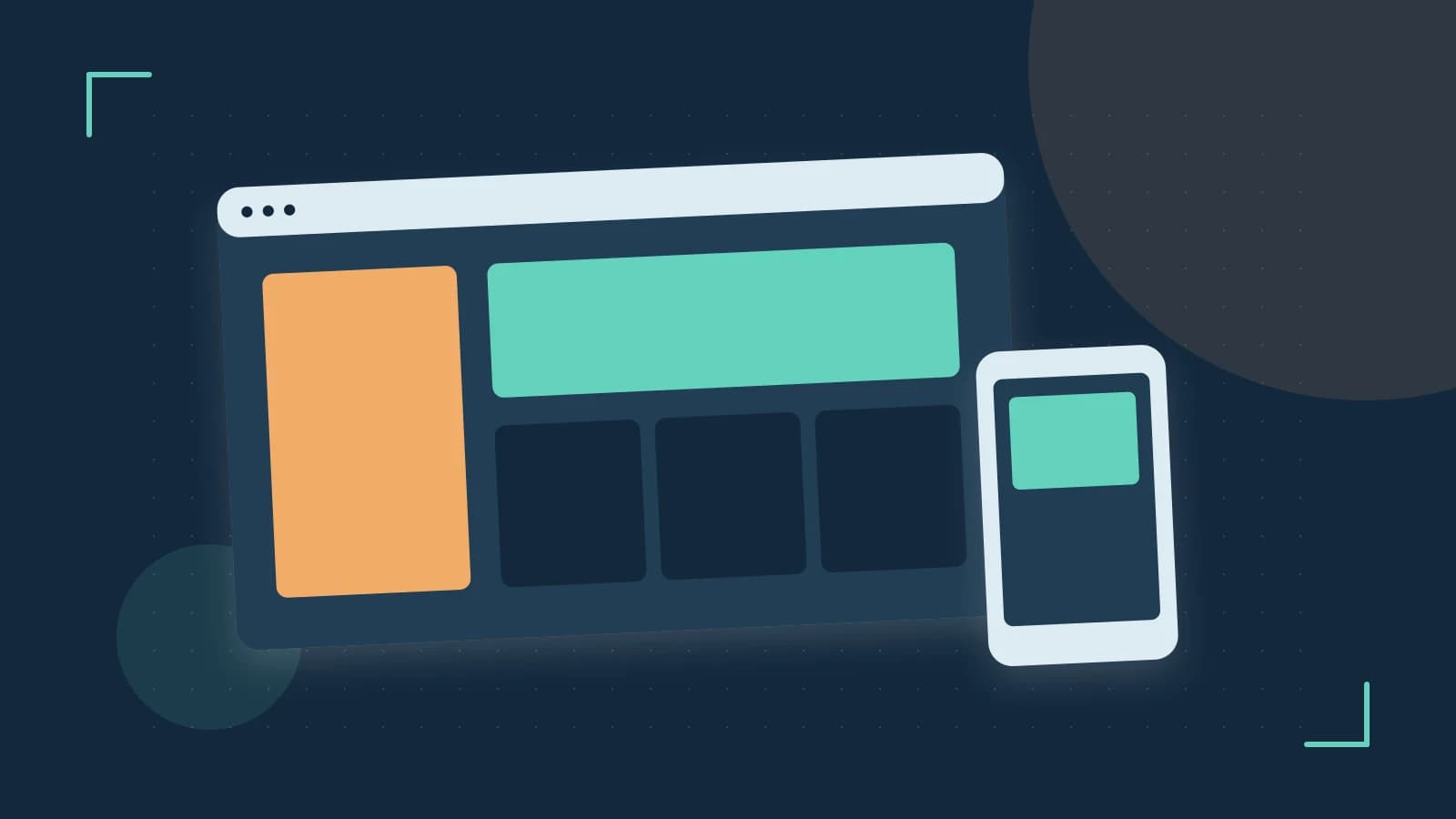
Shipping the same application to Windows, macOS, iOS, and Android usually means maintaining two or three separate UI layers: a desktop framework plus native mobile toolkits. FireMonkey (FMX), the cross-platform UI framework included with RAD Studio, approaches this differently. It replaces native OS controls with a GPU-accelerated canvas and a shared object model, so a single form definition can compile and deploy to every supported target. The engineering decision is not simply “write once, run anywhere.” It is a deliberate trade: you accept a custom rendering pipeline in exchange for visual consistency and a genuinely shared codebase.
How FireMonkey Renders a Single Codebase
Traditional VCL or native mobile development embeds operating-system widgets—a Windows BUTTON, an iOS UIButton, an Android View. FireMonkey does not. Every visual element is a TControl descendant drawn by the FMX rendering engine using the GPU. A TButton is a styled primitive, not a platform control. Because the drawing happens in your application process, the same form code produces the same pixels on every target.
This unified pipeline also explains FMX’s hierarchical object model. Controls are graphical objects that support rotation, scaling, opacity, and 3D transforms as first-class properties. You can nest a TImage inside a rotating TLayout and the result will render identically on desktop and mobile. The cost is that standard platform interaction idioms—native context menus, system text-selection handles, or platform accessibility trees—may behave differently or require extra work to approximate.
Styling and Layout Without Per-Form Duplication
In a single-codebase strategy, visual changes should not require editing every form. FireMonkey decouples appearance from component logic through Style Books. A TStyleBook resource holds the visual definition for control types. You edit a button’s fill, border, and font in the Style Designer, then assign that style book to the form or application. Every TButton picks up the change automatically.
Layout follows the same shared-asset philosophy. FireMonkey encourages alignment and margins instead of absolute pixel positioning. TLayout acts as an invisible container; TGridPanelLayout arranges children in rows and columns. Because screen densities and aspect ratios vary wildly between a 27-inch monitor and an Android phone, anchoring controls to container edges and using relative sizing is not optional—it is the only reliable way to avoid clipped or overlapping interfaces.
Platform-Specific Logic Without Spaghetti Code
Even with shared UI, some behavior must diverge by operating system. FireMonkey supports conditional compilation directives such as {$IFDEF ANDROID}, {$IFDEF IOS}, and {$IFDEF MSWINDOWS}. The risk is scattering these blocks throughout business logic until the codebase becomes unmaintainable.
A safer pattern is to define a shared interface and hide the platform branches inside a factory or implementation unit. The rest of the application calls the interface and remains platform-agnostic.
Worked Example: A Responsive Action Button
The following example assumes a Multi-Device Application created in the RAD Studio IDE (File > New > Multi-Device Application). It demonstrates a shared layout, a styled button, and a platform-specific notification abstracted behind an interface.
1. Layout in the Form Designer
- Drop a
TLayouton the form. SetAligntoTopand give it a fixedHeight(for example,64). - Drop a
TGridPanelLayoutinside the layout. SetAligntoClientand add one column via theColumnCollectioneditor. - Drop a
TButtoninto the grid cell. SetAligntoClientand apply margins (for example,Margins.Top := 8; Margins.Bottom := 8;) so the control does not touch screen edges on high-density displays.
2. Shared style
Open the Style Designer, create a custom style for TButton, change the fill color and font size, and save it into a TStyleBook on the form. Assign the style book to the form’s StyleBook property. Deploying to Windows and Android should now show the same button appearance.
3. Platform abstraction
In a shared unit, declare an interface and a factory function:
interface

type
  IPlatformNotifier = interface
    ['{GUID}']
    procedure Notify(const Msg: string);
  end;

function GetPlatformNotifier: IPlatformNotifier;

implementation

{$IFDEF ANDROID}
uses
  MyApp.Platform.Android.Notifier; // your Android implementation unit
function GetPlatformNotifier: IPlatformNotifier;
begin
  Result := TAndroidNotifier.Create;
end;
{$ENDIF}
{$IFDEF MSWINDOWS}
uses
  MyApp.Platform.Windows.Notifier; // your Windows implementation unit
function GetPlatformNotifier: IPlatformNotifier;
begin
  Result := TWindowsNotifier.Create;
end;
{$ENDIF}

end.
In the button’s OnClick event, call the interface without any conditional code:
procedure TForm1.Button1Click(Sender: TObject);
begin
  GetPlatformNotifier.Notify('Action triggered');
end;
This keeps the event handler readable and confines platform branches to a single unit.
Trade-offs You Should Price In
| Decision | Benefit | Cost / Risk |
|---|---|---|
| GPU-accelerated custom rendering | Pixel-level consistency across all targets | Controls may feel non-native; system interaction patterns differ |
| Style Book centralization | Global visual updates without touching forms | Requires discipline; ad-hoc per-component property changes can override styles |
| Alignment-based layout | Responsive across densities and aspect ratios | Deeply nested layouts can reduce frame rates on low-end mobile GPUs |
| Conditional compilation | Access to OS-specific APIs from shared code | Spaghetti code if platform logic is not abstracted |
Performance deserves special attention. FMX can render rich 3D effects and deeply nested visual trees, but lower-end Android devices have limited GPU fill rate. If your UI stacks multiple semi-transparent layers or animates large bitmaps, test on representative hardware early.
Practical Verification Steps
- In the RAD Studio IDE, create a new Multi-Device Application and confirm the Target Platforms node lists Windows, macOS, iOS, and Android. Steps assume RAD Studio 10.4 or newer; older versions may expose different platform managers.
- Apply the custom
TButtonstyle described above and deploy to at least two operating systems (for example, Windows 64-bit and Android). Visually compare the button rendering. - Use the Form Designer’s device views (or deploy to simulators) to resize the form across phone, tablet, and desktop factors. Verify that margins and alignment prevent clipping.
- If targeting Android, enable USB debugging on the test device and deploy directly. For iOS, a valid provisioning profile and signing certificate are required; without them the deployment will fail before the application launches.
FireMonkey’s single codebase is not a free lunch. It is a rendering and layout contract: you own the pixels, so you also own the responsibility to make them feel right on every screen. When visual consistency and code reuse outweigh the need for stock platform widgets, that contract is usually worth signing.
 radstudio
0 replies
A thoughtful contribution can make all the difference. Be the first to share one.