Filtering Network Messages with Photon Engine Interest Groups in Unity PUN2
Learn how to use Photon Engine interest groups in Unity PUN2 to filter network messages, reducing bandwidth by ensuring only subscribed players receive specific events.
08 Jan 2026, 02:16 UTC
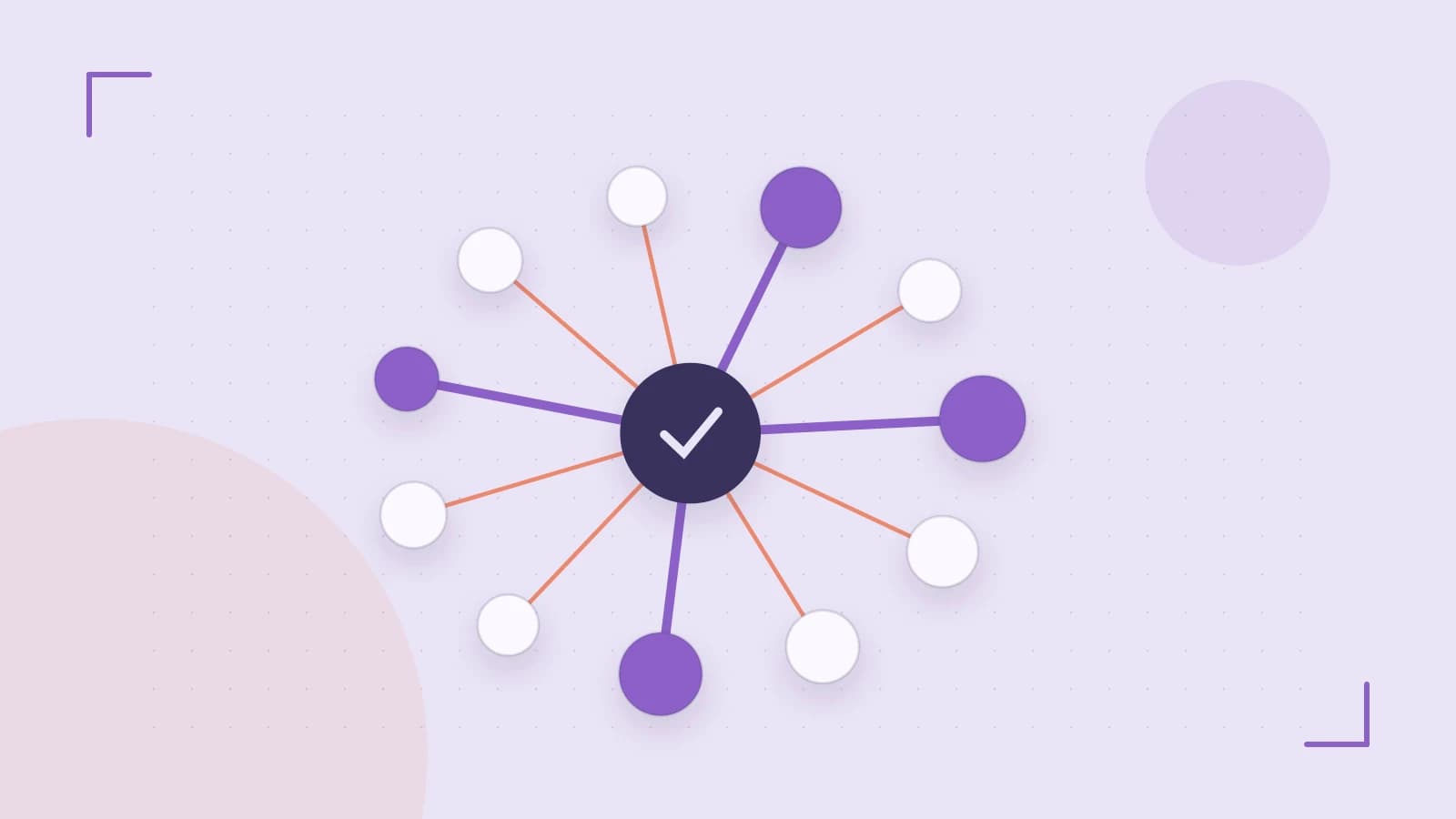
Use interest groups to send events only to the players that need them
When you want to reduce bandwidth in a Photon Unity Networking 2 (PUN2) room, you can split your game’s messages into logical channels called interest groups. Each player subscribes to the groups they care about, and the server only forwards events that match those subscriptions. This prevents every player from receiving every packet, which is critical for performance in large rooms.
Worked configuration: subscribe to a custom group and raise an event
1. Subscribe the local player after joining a room
After a successful JoinOrCreateRoom call, you must define which groups the client should listen to and which groups the client is permitted to send to. Group 0 is the default group and is active by default unless explicitly changed.
using Photon.Pun;
using Photon.Realtime;

public class InterestGroupSetup : MonoBehaviourPunCallbacks
{
    public override void OnJoinedRoom()
    {
        // Listen to group 0 (default) and enable sending to group 1
        // First array: groups to listen to. Second array: groups to send to.
        PhotonNetwork.SetInterestGroups(new byte[] { 0 }, new byte[] { 1 });
    }
}
Note that listening and sending permissions are independent. If you omit a group from the second array, the server will reject any attempt by that client to send messages to that specific group.
2. Raise an event targeting the custom group
To send a message that only players subscribed to group 1 should receive, use the RaiseEventOptions class to specify the target group.
using Photon.Pun;
using Photon.Realtime;

public class CustomEventSender : MonoBehaviourPunCallbacks
{
    private const byte MY_EVENT_CODE = 200; // Use a unique event code

    public void SendCustomEvent(object content)
    {
        var raiseOptions = new RaiseEventOptions
        {
            InterestGroup = 1   // Deliver only to subscribers of group 1
        };
        var sendOptions = new SendOptions
        {
            Reliability = true
        };
        PhotonNetwork.RaiseEvent(MY_EVENT_CODE, content, raiseOptions, sendOptions);
    }
}
3. Receive the event on the subscribed client
Clients that have subscribed to group 1 will receive the event via the OnEvent callback.
public class CustomEventReceiver : MonoBehaviourPunCallbacks
{
    public override void OnEvent(EventData photonEvent)
    {
        if (photonEvent.Code == MY_EVENT_CODE)
        {
            object data = photonEvent.CustomData;
            Debug.Log($"[Group 1] Received: {data}");
        }
    }
}
Limits and common mistakes
Server-side limitations
- Group Capacity: Interest groups are identified by a single byte, meaning there are a maximum of 255 available groups (1–255; 0 is reserved).
- Session Persistence: Group memberships are not persisted. You must re-apply
SetInterestGroupsevery time a player joins or rejoins a room. - Overhead: While groups reduce bandwidth, managing a very high number of groups per player (e.g., over 50) can increase server tracking overhead.
Typical pitfalls
- Silent Drops: If a client attempts to raise an event for group 1 but has not included group 1 in their "send" array via
SetInterestGroups, the server will drop the event without an error message. - Unsubscribing from Group 0: If you replace the default group 0 with a custom group but forget to subscribe to the new group, the client will stop receiving all network events.
- Data Types: Ensure the
contentpassed toRaiseEventis a Photon-serializable type to avoid transmission failures.
Verification steps
To verify that filtering is operating correctly in your project:
- Launch two instances of your game and join the same room.
- Configure Player A to subscribe to group 1 and Player B to subscribe only to group 0.
- Have a client send an event specifically to
InterestGroup = 1. - Check the Unity Console: Player A should log the receipt of the event, while Player B should receive nothing.
- If using a self-hosted Photon server, monitor the message traffic per group in the dashboard to confirm the event did not broadcast to the entire room.
 photonengine
 unity
unity0 replies
A thoughtful contribution can make all the difference. Be the first to share one.