Configure network routing preference for Azure Storage
This article describes how you can configure the network routing preference and route-specific endpoints for your storage account. The network routing preference specifies how network traffic is routed to your account from clients over the internet. Route-specific endpoints are new endpoints that Az
29 Apr 2024, 06:52 UTC
This article describes how you can configure the network routing preference and route-specific endpoints for your storage account.
The network routing preference specifies how network traffic is routed to your account from clients over the internet. Route-specific endpoints are new endpoints that Azure Storage creates for your storage account. These endpoints route traffic over a desired path without changing your default routing preference. To learn more, see Network routing preference for Azure Storage.
Configure the routing preference for the default public endpoint
By default, the routing preference for the public endpoint of the storage account is set to Microsoft global network. You can choose between the Microsoft global network and Internet routing as the default routing preference for the public endpoint of your storage account. To learn more about the difference between these two types of routing, see Network routing preference for Azure Storage.
Warning
If your storage account contains or will contain Azure file shares, don't change your routing preference to Internet routing. The default option, Microsoft routing, works with all Azure Files configurations. The Internet routing option doesn't support AD domain join scenarios or Azure File Sync.
To change your routing preference to Internet routing:
Sign in to the Azure portal.
Navigate to your storage account in the portal.
Under Security + networking, choose Networking.
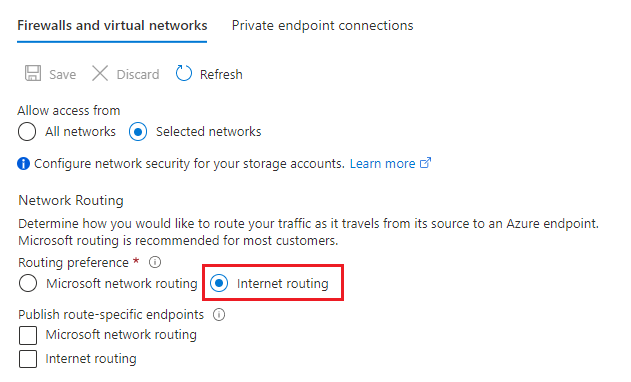
In the Network routing tab, under Routing preference setting to Internet routing.
Click Save.
Sign in to your Azure subscription with the
Connect-AzAccountcommand and follow the on-screen directions to authenticate.Connect-AzAccountIf your identity is associated with more than one subscription, then set your active subscription to subscription of the storage account that will host your static website.
$context = Get-AzSubscription -SubscriptionId <subscription-id>
Set-AzContext $context
Replace the
<subscription-id>placeholder value with the ID of your subscription.To change your routing preference to Internet routing, use the Set-AzStorageAccount command and set the
--routing-choiceparameter toInternetRouting.Set-AzStorageAccount -ResourceGroupName <resource-group-name> ` -AccountName <storage-account-name> ` -RoutingChoice InternetRoutingReplace the
<resource-group-name>placeholder value with the name of the resource group that contains the storage account.Replace the
<storage-account-name>placeholder value with the name of the storage account.
Sign in to your Azure subscription.
To launch Azure Cloud Shell, sign in to the Azure portal.
To log into your local installation of the CLI, run the az login command:
az login
If your identity is associated with more than one subscription, then set your active subscription to subscription of the storage account that will host your static website.
az account set --subscription <subscription-id>Replace the
<subscription-id>placeholder value with the ID of your subscription.To change your routing preference to Internet routing, use the az storage account update command and set the
--routing-choiceparameter toInternetRouting.az storage account update --name <storage-account-name> --routing-choice InternetRoutingReplace the
<storage-account-name>placeholder value with the name of your storage account.
Configure a route-specific endpoint
You can also configure a route-specific endpoint. For example, you can set the routing preference for the default endpoint to Internet routing, and then publish a route-specific endpoint that enables traffic between clients on the internet and your storage account to be routed via the Microsoft global network.
This preference affects only the route-specific endpoint. This preference doesn't affect your default routing preference.
Navigate to your storage account in the portal.
Under Security + networking, choose Networking.
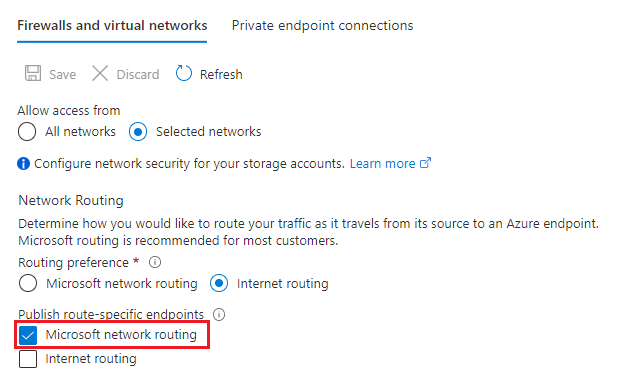
In the Network routing tab, under Publish route-specific endpoints, choose the routing preference of your route-specific endpoint, and then click Save.
The following image shows the Microsoft network routing option selected.
To configure a route-specific endpoint, use the Set-AzStorageAccount command.
To create a route-specific endpoint that uses the Microsoft network routing preference, set the
-PublishMicrosoftEndpointparameter totrue.To create a route-specific endpoint that uses the Internet routing preference, set the
-PublishInternetEndpointparameter totrue.
The following example creates a route-specific endpoint that uses the Microsoft network routing preference.
Set-AzStorageAccount -ResourceGroupName <resource-group-name> `
 -AccountName <storage-account-name> `
 -PublishMicrosoftEndpoint $true
Replace the
<resource-group-name>placeholder value with the name of the resource group that contains the storage account.Replace the
<storage-account-name>placeholder value with the name of the storage account.
To configure a route-specific endpoint, use the az storage account update command.
To create a route-specific endpoint that uses the Microsoft network routing preference, set the
--publish-microsoft-endpointsparameter totrue.To create a route-specific endpoint that uses the Internet routing preference, set the
--publish-internet-endpointsparameter totrue.
The following example creates a route-specific endpoint that uses the Microsoft network routing preference.
az storage account update --name <storage-account-name> --publish-microsoft-endpoints trueReplace the
<storage-account-name>placeholder value with the name of the storage account.
Find the endpoint name for a route-specific endpoint
If you configured a route-specific endpoint, you can find the endpoint in the properties of you storage account.
Under Settings, choose Endpoints.
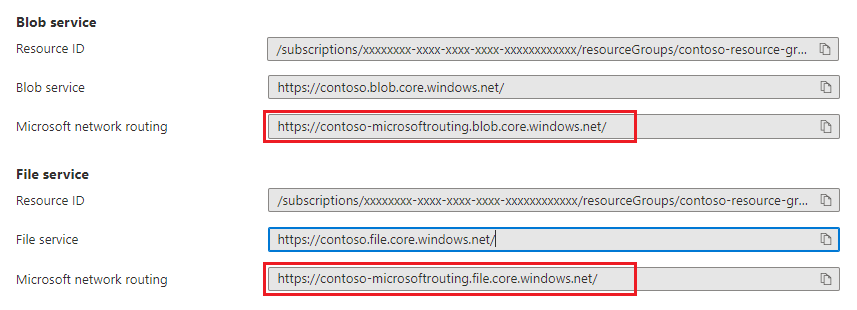
The Microsoft network routing endpoint is shown for each service that supports routing preferences. This image shows the endpoint for the blob and file services.
Open diagram: Microsoft network routing option for route-specific endpoints
To print the endpoints to the console, use the
PrimaryEndpointsproperty of the storage account object.Get-AzStorageAccount -ResourceGroupName <resource-group-name> -Name <storage-account-name> write-Output $StorageAccount.PrimaryEndpointsReplace the
<resource-group-name>placeholder value with the name of the resource group that contains the storage account.Replace the
<storage-account-name>placeholder value with the name of the storage account.
To print the endpoints to the console, use the az storage account show property of the storage account object.
az storage account show -g <resource-group-name> -n <storage-account-name>Replace the
<resource-group-name>placeholder value with the name of the resource group that contains the storage account.Replace the
<storage-account-name>placeholder value with the name of the storage account.
 azure
azure