Bamboo Branch Builds: Automate CI for Every Feature Branch
Learn how Atlassian Bamboo’s Branch Builds automatically create isolated CI pipelines for new git branches, save time on plan duplication, and keep build logs tidy. The article walks through setup, a real‑world example, trade‑offs, and how to verify your configuration.
04 Jan 2026, 15:03 UTC
Why Branch Builds Are a Game‑Changer
When every developer pushes a new feature branch, the classic CI workflow forces you to duplicate the entire Bamboo plan for that branch. You copy tasks, variables, and notifications, then tweak a few lines to point at the new branch. The result is a maintenance nightmare and a flood of build tabs that are hard to keep tidy.
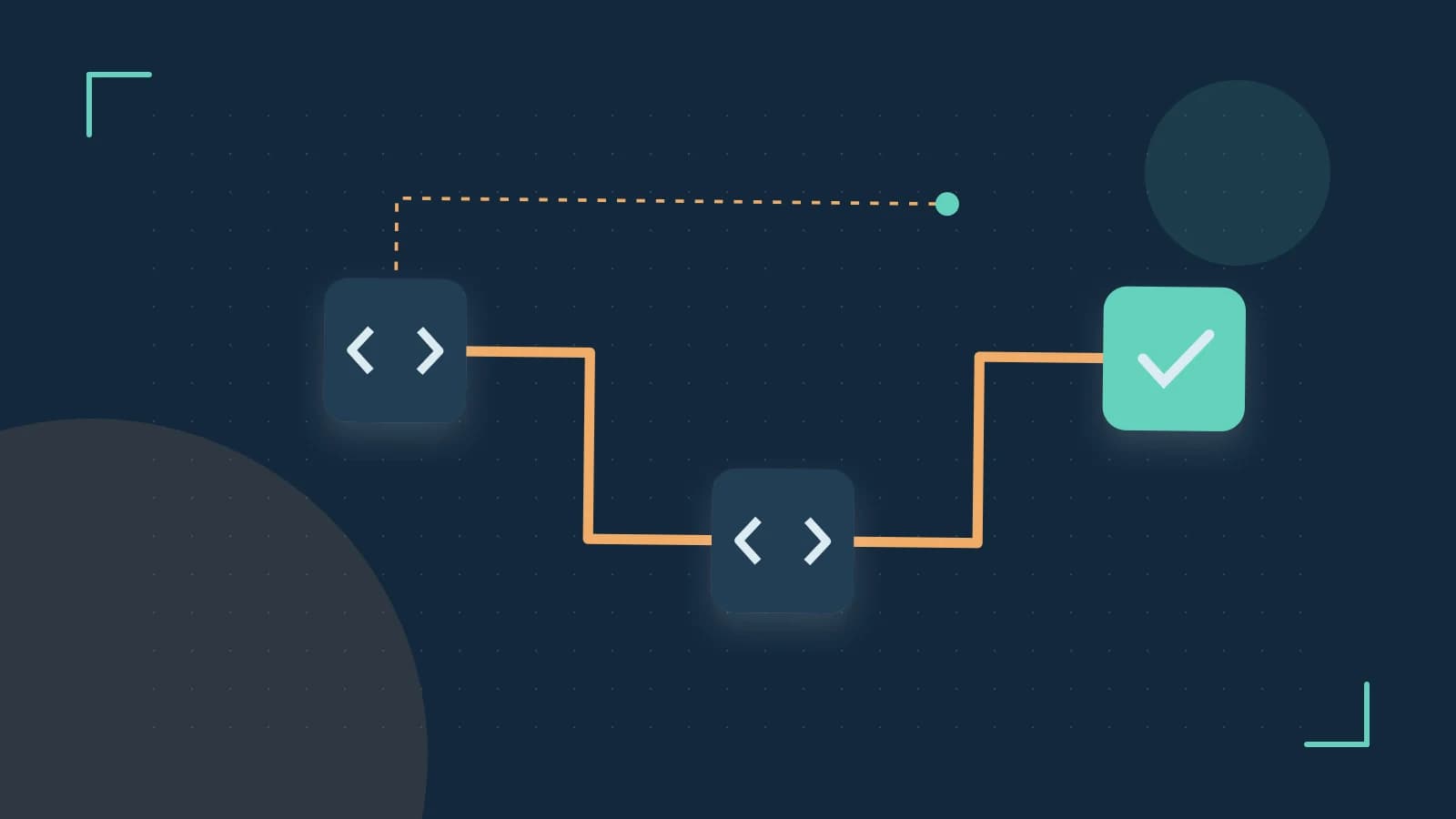
Branch Builds solve this by letting Bamboo detect new branches automatically and spin up a separate build plan for each one. The new plan inherits all of the parent plan’s configuration, so you only need to tweak what’s different (for example, a different test suite). The build logs and artifacts are kept in a dedicated tab named after the branch, making troubleshooting straightforward.
Practical Setup – One Plan, Many Branches
Below is a step‑by‑step guide to enable Branch Builds on a Bamboo plan that uses a Git repository. The instructions assume Bamboo 6.0 or newer.
- Navigate to the Plan Configuration
- Open your Bamboo instance and go to
Builds > Plans. - Select the plan you want to enable Branch Builds for.
- Open your Bamboo instance and go to
- Enable Branch Builds
- In the plan configuration page, click the
Branch buildstab. - Check
Enable branch builds. - Choose the source control system (Git, Mercurial, or Subversion). For Git, provide the repository URL and authentication method.
- Optional: set a
Branch filterto include or exclude certain patterns. - Click
Save.
- In the plan configuration page, click the
- Configure Webhooks
- Navigate to the repository settings in Bamboo.
- Under
Repository hooks, add a webhook that triggers onpushandpull request createdevents. - Copy the webhook URL and paste it into your Git hosting service (GitHub, Bitbucket, GitLab, etc.).
- Verify the Setup
- Push a new branch to the repository:
git push origin feature/new‑feature. - Return to Bamboo – a new tab labeled
feature/new‑featureshould appear under the plan. - Click the tab to see the build run automatically.
- Push a new branch to the repository:
Branch‑Specific Variables and Overrides
Branch Builds inherit all parent plan variables. If you need a variable to change per branch, you can define it in the branch tab. For example, suppose the parent plan runs a full test suite, but you want the feature/new‑feature branch to run only a subset of tests.
Parent plan variable:
  TEST_SUITE = full

Branch tab variable override:
  TEST_SUITE = subset
In the build tasks, reference the variable as ${bamboo.TEST_SUITE}. When Bamboo runs the branch build, it will resolve the overridden value.
Concrete Example – Deploy to Staging on Feature Branches
Assume you have a plan that builds a Java application and deploys to a staging environment. You want to deploy each feature branch to its own staging instance so that developers can test their changes in isolation.
- Define a branch‑specific variable
- In the branch tab for
feature/awesome‑feature, add a variable:bamboo.stagingUrl = https://staging.awesome-feature.example.com
- In the branch tab for
- Modify the deployment task
- In the plan’s deployment project, edit the deploy task to use the variable:
Deploy to ${bamboo.stagingUrl}
- In the plan’s deployment project, edit the deploy task to use the variable:
- Push the branch
- After pushing
feature/awesome‑feature, Bamboo automatically creates the branch build. - The build logs show the deployment URL resolved to the branch‑specific value.
- After pushing
Trade‑Offs and Limitations
- Agent Concurrency: Each branch build consumes an agent. If you have 5 agents and 10 branches, 5 builds run immediately while the rest queue. This can delay feedback for developers working on many branches simultaneously.
- Webhook Dependency: Automatic branch detection relies on correctly configured webhooks. If the webhook is missing or misconfigured, Bamboo will not create the branch build.
- Special Characters: Branch names with slashes or spaces may cause URL‑encoding issues in the Bamboo UI. Stick to alphanumeric characters, dashes, and underscores for branch names.
- Plan Size: Very large plans with many tasks can lead to long build times for each branch. Consider splitting complex pipelines into separate plans if performance becomes an issue.
How to Verify Your Branch Build Configuration
Use Bamboo’s REST API to list existing branch builds and confirm that new branches appear as expected.
curl -u username:password \
     -X GET \
     https://your-bamboo.example.com/rest/api/latest/branch-builds?planKey=PROJ-PLAN
Check the JSON response for an entry with branchName matching your recent push. Additionally, open the build tab and inspect the ${bamboo.branchName} variable in the logs to ensure it resolves correctly.
Bottom Line
Branch Builds let you maintain a single, clean Bamboo plan while still giving each feature branch its own isolated CI pipeline. By leveraging webhooks, branch‑specific variables, and the built‑in UI, you can provide rapid feedback to developers without the overhead of manual plan duplication. Keep an eye on agent availability and webhook configuration to avoid surprises, and use the REST API to audit your branch build inventory.
 bamboo
 git
git